Best IPTV Setup for Live Sports Streaming: 60 FPS Optimization, Hardware Decoding & Zero-Lag Guide
Live sports broadcasting represents the ultimate crucible for digital video technology. When streaming an episodic drama or a pre-recorded cinema movie, the underlying delivery pipeline operates under forgiving parameters: video bitrates remain relatively stable, audio dynamics are predictable, and client player applications can buffer up to two minutes of future video data ahead of your current playback position. If network congestion drops transmission speeds for four seconds, your movie playback continues uninterrupted from internal cache memory without dropping a single pixel or frame.
In high-stakes live sports, however, every technical margin vanishes. A championship football final, a down-to-the-wire NBA playoff game, a 200 mph Formula 1 race, or a heavyweight UFC title fight features extreme camera velocity, rapid scene transitions, unpredictable stadium lighting, and high-frequency audio dynamics. Furthermore, because sports happen in real time, streams must be delivered with minimal latency. A two-second stream freeze or an unexpected resolution downgrade can cause you to miss a game-winning goal, a buzzer-beating three-pointer, or a knockout punch.
Creating a true, broadcast-grade sports streaming command center requires careful harmony between four critical architectural pillars: high-frame-rate broadcast feeds (50/60 FPS), GPU-accelerated hardware decoding, judder-free display refresh rate matching, and a deterministic, low-jitter home network.
This comprehensive technical guide details exactly how to architect, configure, and optimize the ultimate live sports IPTV setup. By methodically addressing video encoding standards, hardware processing limitations, and network latency, you can eliminate motion blur, prevent stream buffering, and enjoy court-side and pitch-side clarity across all your favorite competitions.
1. The Physics of Sports Motion: 60 FPS vs. 30 FPS Frame Rates
To understand why live sports appear crystal-clear on professional broadcasts but look blurry and stuttered on generic streaming feeds, one must analyze the mathematical relationship between frame rates, camera velocity, and human visual perception.
+--------------------------------------------------------------------------+
| Frame Rate Motion Tracking in Fast Sports (Soccer / F1 / Basketball)     |
| [25 / 30 FPS Broadcast]: 1 Frame Every 33.3ms -> Severe Ball Ghosting    |
| [50 / 60 FPS Broadcast]: 1 Frame Every 16.6ms -> Razor-Sharp Ball Flight |
+--------------------------------------------------------------------------+
The Temporal Resolution Imperative
In standard digital cinema, directors intentionally shoot at 24 Frames Per Second (FPS) because natural motion blur mimics the physical response of human vision in conversational settings. In high-speed sports broadcasting, however, motion blur is the enemy:
- In a professional soccer match, a striking forward kicks a ball at 70 miles per hour (roughly 102 feet per second).
- At 30 FPS, the soccer ball updates its position on your television display only once every 33.3 milliseconds. During that brief fraction of a second, the ball travels more than three feet across the pitch. On a modern 65-inch or 75-inch 4K television, this produces severe visual ghosting: the ball appears as a faint, smudged white streak, and player legs blur during sprint challenges.
- At 60 FPS (or 50 FPS European PAL standard), temporal visual information is doubled. The ball's physical position updates every 16.6 milliseconds. Every blade of turf, spinning ball seam, and jersey number remains tack-sharp as the camera sweeps across the stadium.
Regional Broadcast Standards: 50 FPS vs. 59.94 / 60 FPS
When browsing sports channels in your NigmaTv live sports directory, you will notice that channels are tagged with specific frame rate profiles:
- North American Sports (ESPN, TNT, CBS, NBC, Fox Sports): Broadcast natively at 59.94 FPS or 60.00 FPS (NTSC standard).
- European Sports (Sky Sports UK, TNT Sports, Canal+, DAZN, beIN Sports): Broadcast natively at 50.00 FPS (PAL standard).
- The Golden Rule: Never settle for a sports stream running at 25 or 30 FPS. Always select feeds labeled FHD 50FPS, FHD 60FPS, or 4K UHD 60FPS.
2. Broadcast Ingestion Architecture: Teleport Downlink to Edge CDN
To appreciate the difference between amateur IPTV relays and a professional sports delivery network, one must inspect the physical journey of a live sports broadcast signal.
+----------------------------------------------------------------------------+
| Professional Sports Transmission Pipeline                                  |
| [Stadium OB Van]                                                           |
|       | (Raw Uncompressed SDI / SMPTE ST 2110: 1.5 - 3.0 Gbps)             |
|       v                                                                    |
| [Satellite Uplink (C-Band / Ku-Band)]                                      |
|       | (Encrypted Clean Satellite Feed)                                   |
|       v                                                                    |
| [NigmaTv Direct Teleport Downlink Earth Stations]                          |
|       | (Pristine Original Satellite Bitstream Ingestion)                   |
|       v                                                                    |
| [Hardware Transcoding Blade Clusters (Nvidia NVENC / Intel QuickSync)]     |
|       | (Pristine 1080p60 / 4K HEVC Encoding at Constant Frame Rate)       |
|       v                                                                    |
| [Global Multi-Tier Edge CDN with Anycast Routing]                          |
|       | (Sub-25ms Distributed Edge Delivery)                               |
|       v                                                                    |
| [Your Living Room IPTV Player (TiviMate / Apple TV 4K)]                    |
+----------------------------------------------------------------------------+
Direct Satellite Feeds vs. Pirated Web Rips
Many budget IPTV providers do not possess direct satellite dish receiver arrays (teleports). Instead, they "restream" consumer over-the-top (OTT) web players or desktop browser streams. This disastrous practice introduces:
- Double Compression Artifacts: The broadcast is compressed once by the original broadcaster, decompressed by a desktop browser, and compressed a second time by an under-powered consumer encoder. Detail, color depth, and sharpness are severely degraded.
- Unacceptable Latency (60–120 seconds): Because the restreamer is capturing from a delayed consumer website, you hear your neighbors cheering for a goal two minutes before you see the ball cross the goal line on your screen!
- Dropped Frames and Variable Frame Rates (VFR): Desktop screen capture introduces dropped frames, jitter, and intermittent audio desynchronization.
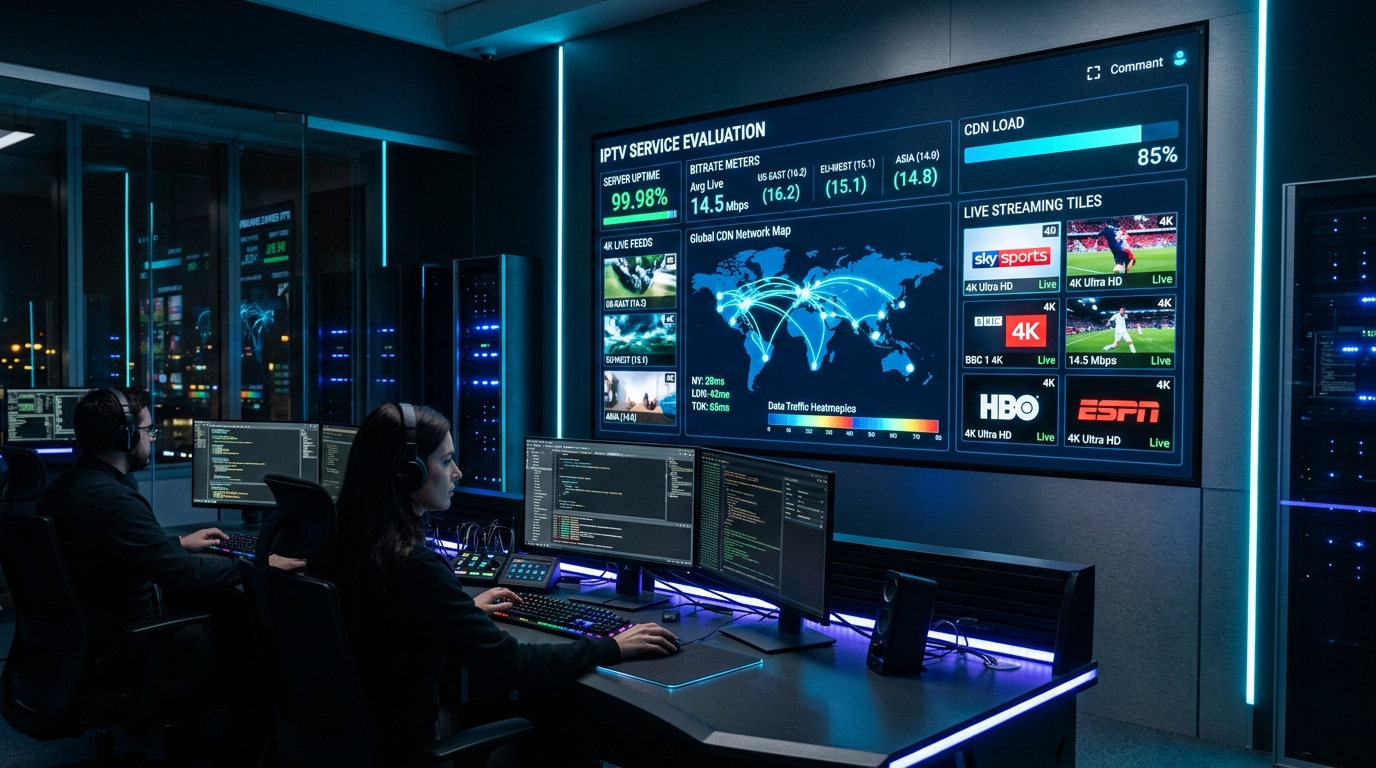
In contrast, NigmaTv ingests live master feeds directly from commercial C-Band and Ku-Band geostationary satellites. The original uncompressed or high-bitrate broadcast signal is passed directly through enterprise hardware transcoding clusters, ensuring that you receive the exact stadium-level frame rate, audio clarity, and immediate latency of a commercial cable or satellite set-top box.
3. Video Compression and Bitrates: H.264 vs. HEVC (H.265) for Sports
Streaming high-speed sports places immense computational stress on video compression encoders. Understanding codec mechanics reveals why certain 1080p feeds look pristine while others dissolve into blocky pixelation during fast action.
+--------------------------------------------------------------------------+
| Macroblocking Stress Test: High-Speed Sports Camera Panning              |
| [Under-allocated H.264 Feed (4 Mbps)] ===> Macroblocking & Muddy Turf    |
| [Optimized HEVC 60 FPS Feed (10 Mbps)] ===> Crisp Stadium Detail & Turf  |
+--------------------------------------------------------------------------+
The Green Pitch Compression Problem
In video encoding theory, solid, textured green grass (such as a soccer or football field) represents the most complex mathematical visual pattern to compress:
- Every individual blade of grass has distinct high-frequency edge detail.
- When the broadcast camera pans rapidly downfield, every pixel on the screen changes simultaneously from frame to frame.
- If an IPTV provider allocates insufficient bitrate to an H.264 stream, the encoder runs out of data capacity, resulting in macroblocking—the grass field turns into a blurry, mosaic-like grid of green squares, and player outlines become pixelated.
Codec Benchmarks for Sports Streaming
| Video Compression Codec | Target Resolution | Frame Rate | Ideal Bitrate Allocation | Perceptual Sports Fidelity |
|---|---|---|---|---|
| Legacy H.264 / AVC | 1080p Full HD | 60 FPS | 10.0 - 15.0 Mbps | Excellent (High compatibility) |
| Budget H.264 (Low Bitrate) | 1080p Full HD | 30 FPS | 3.5 - 5.0 Mbps | Poor (Macroblocking during pans) |
| Modern HEVC / H.265 | 1080p Full HD | 60 FPS | 6.0 - 9.0 Mbps | Outstanding (Sharp turf & motion) |
| 4K Ultra HD HEVC | 2160p 4K HDR | 60 FPS | 18.0 - 28.0 Mbps | Broadcast-Grade Master Output |
| Next-Gen AV1 | 4K Ultra HD | 60 FPS | 14.0 - 20.0 Mbps | Emerging Standard (Ultra-efficient) |
4. Display Refresh Rate Calibration: Auto Frame Rate (AFR) Matching
One of the most widespread, frustrating flaws encountered by sports streamers is the "judder effect"—a subtle, rhythmic visual stutter that occurs every few seconds even when internet speeds are blazing fast and servers are completely stable.
[Stream: 50 FPS European Feed (Sky Sports)]
                     |
       [TV Screen: Locked at 60 Hz NTSC Output]
                     |
[Result: 10 Dropped / Repeated Frames Every Second -> Constant Judder!]
The Mathematics of Pulldown Judder
If your streaming hardware (such as an Apple TV or Firestick) is configured to output a static 60 Hz refresh rate to your television, but you tune into a 50 FPS European sports feed:
- The television must display 50 frames across 60 refresh cycles.
- Because 60 is not evenly divisible by 50, the hardware must periodically duplicate or drop frames to keep audio synchronized.
- To the human eye, this manifests as a jarring, stuttering motion whenever a soccer ball arcs across the sky or a race car speeds around a corner.
How to Configure Auto Frame Rate (AFR) Matching
To achieve 100% fluid, broadcast-smooth sports motion, you must enable dynamic refresh rate synchronization:
1. On Android TV & Amazon Fire TV (via TiviMate)
- Open TiviMate Settings > Playback.
- Scroll to Auto Frame Rate (AFR) and toggle the switch to ON.
- What happens: When you open a 50 FPS feed, your television screen will briefly refresh and lock into pure 50 Hz. When you switch to a 60 FPS North American broadcast, it dynamically shifts to 60 Hz. Judder is completely eliminated!
2. On Apple TV 4K (tvOS)
- Go to Apple TV Settings > Video and Audio > Match Content.
- Turn Match Frame Rate to ON.
- Turn Match Dynamic Range to ON.
5. Hardware Video Decoding: Hardware (HW) vs. Software (SW)
Handling continuous 60 FPS video streams demands robust graphics hardware. In your player application settings, you will encounter the Video Decoder selection.
[Stream Data] ---> [Hardware Decoder (GPU Silicon)] ===> Renders in ~20ms (Fluid & Cool)
[Stream Data] ---> [Software Decoder (CPU Processing)] ===> Renders in ~350ms (Dropped Frames!)
Why Hardware Acceleration (HW / HW+) is Mandatory for Sports
- Hardware Acceleration: Offloads video stream decompression directly to the dedicated graphics processor (such as the Nvidia Tegra X1+, Apple A15 Bionic, or MediaTek GPU). It consumes less than 5% CPU power, runs completely cool, and easily processes dense 4K 60 FPS HEVC streams without dropping a single frame.
- Software Acceleration: Forces the device's general-purpose CPU cores to mathematically decompress every frame. During fast-action sports broadcasts, CPU usage spikes to 100%, causing thermal CPU throttling, audio desynchronization, and severe visual stutter.
- Action Step: In TiviMate, IPTV Smarters Pro, or XCIPTV, always verify that your primary Video Decoder is set to Hardware (HW) or Hardware+ (HW+).
6. Hardware Selection & Benchmark Tier List for Sports (2026)
Not all streaming hardware is created equal. Processing continuous 4K 60 FPS HDR sports feeds while operating multi-view split screens requires significant system memory, GPU decoders, and thermal headroom. Here is our engineering evaluation of streaming devices:
+----------------------------------------------------------------------------+
| 2026 Sports Streaming Device Performance Matrix                            |
+--------------------------+-------------------+--------------+--------------+
| Device Model             | Processor / GPU   | AFR Support  | Multi-View   |
+--------------------------+-------------------+--------------+--------------+
| Apple TV 4K (3rd Gen)    | A15 Bionic (5-core)| Native tvOS  | 4K Quad-View |
| Nvidia Shield TV Pro     | Tegra X1+ (256-GPU)| Android AFR  | Up to 9 Feeds|
| Formuler Z11 Pro Max     | Realtek RTD1319C  | MYTVOnline3  | Quad-View    |
| Fire TV Cube (3rd Gen)   | Octa-Core 2.2 GHz | System AFR   | Quad-View    |
| Fire TV Stick 4K Max Gen2| Quad-Core 2.0 GHz | App-Level AFR| Dual-View    |
| Generic Budget Sticks    | Low-end Quad-Core | Inconsistent | Buffers/Crashes|
+--------------------------+-------------------+--------------+--------------+
Tier 1: The Champions (Ultra-Smooth 60 FPS & Flawless Multi-View)
- Apple TV 4K (3rd Generation): Powered by the A15 Bionic chip, it features unmatched single-core CPU and Metal GPU performance. Hardware frame rate matching is integrated at the operating system level, making it virtually immune to dropped frames or micro-stutters.
- Nvidia Shield TV Pro: The gold standard for Android power users. Features 3GB of RAM, Gigabit Ethernet, and AI-enhanced upscaling that sharpens 1080p sports broadcasts onto 4K screens in real time. Can run up to 9 simultaneous SD feeds or 4 simultaneous 1080p60 feeds in TiviMate without breaking a sweat.
- Formuler Z11 Pro Max: Engineered exclusively for IPTV. Its proprietary MYTVOnline3 software provides instantaneous channel zapping, picture-in-picture, and hardware-accelerated EPG caching.
Tier 2: The Value Performers
- Amazon Fire TV Cube (3rd Gen): Offers an octa-core processor and dedicated HDMI pass-through. Delivers smooth 60 FPS sports and responsive multi-view handling.
- Amazon Fire TV Stick 4K Max (2nd Gen): Supports Wi-Fi 6E and 16GB of internal storage. Handles single 4K 60 FPS feeds flawlessly, but can experience thermal throttling if pushed through extended 4-screen multi-view sessions.
Tier 3: Devices to Avoid for Serious Sports Fans
- Fire TV Stick Lite / Non-4K Sticks: Underpowered dual-core/quad-core processors with only 1GB of RAM. They suffer from frequent thermal throttling, lack 4K HEVC hardware decoders, and drop frames during fast camera sweeps.
- Cheap Unbranded "Android TV" Boxes: Often run hacked mobile tablet Android ROMs without Google Widevine DRM certification, lack proper HDMI auto frame rate switching, and overheat within thirty minutes of high-bitrate sports viewing.
7. Network Hardwiring: Why Ethernet is Essential for Live Sports
While on-demand movie platforms can buffer 30 to 60 seconds of video in advance, live sports streaming operates in near real-time, holding only a 1.0 to 2.0-second buffer. At this low latency threshold, wireless Wi-Fi connections are inherently vulnerable to momentary radio interference.
+-------------------------------------------------------------+
| Network Connection Stability for Live Sports                |
| [Wired Cat6 Ethernet]: 0% Packet Loss | Sub-2ms Jitter     |
| [5 GHz Wi-Fi]        : <0.5% Loss     | 5-15ms Jitter      |
| [2.4 GHz Wi-Fi]      : 2-6% Loss      | 25-120ms (BUFFER!) |
+-------------------------------------------------------------+
Eliminating Wireless Packet Loss
- Household microwave ovens, Bluetooth devices, and neighboring wireless routers emit periodic radio frequency bursts on 2.4 GHz frequencies, causing momentary packet dropouts.
- When packet loss occurs during a live stream, the player must wait for TCP re-transmission, depleting the tiny 1.5-second sports buffer and causing playback to freeze.
- The Fix: Connect your streaming terminal directly to your router using a physical Cat6 Ethernet cable. For Amazon Firestick users, install an inexpensive USB OTG Ethernet adapter.
For complete network benchmarking and router tuning instructions, review our guide on internet speed requirements for IPTV.
8. Sport-by-Sport Playback Optimization Guide
Different sports disciplines present unique visual characteristics that require specific tuning on your television and IPTV player:
+----------------------------------------------------------------------------+
| Sport-Specific Tuning Matrix                                               |
+------------------+-------------------+----------------+--------------------+
| Sport Category   | Broadcast Standard| Primary Stress | TV Picture Preset  |
+------------------+-------------------+----------------+--------------------+
| Soccer / Football| 1080p50 / 4K50    | Grass Panning  | Game / Cinema Mode |
| American Football| 720p60 / 1080p60  | High Contrast  | Expert Dark/Bright |
| Motorsports / F1 | 1080p50 / 4K50    | 300 km/h Motion| Turn Motion Off    |
| Basketball (NBA) | 1080p60 / 4K60    | Hardwood Glare | Custom 60Hz Low Lag|
| Combat (UFC/Box) | 1080p60 PPV       | Rapid Strikes  | Neutral Sharpness  |
| Ice Hockey (NHL) | 1080p60           | Puck Tracking  | High Brightness    |
+------------------+-------------------+----------------+--------------------+
1. Soccer & Football (Premier League, UEFA Champions League, La Liga)
- The Challenge: Rapid sideline-to-sideline camera tracking across millions of green grass blades.
- Optimization: Select European 50 FPS feeds (PAL standard). On your physical TV display settings, disable Motion Interpolation (often called TruMotion, Auto Motion Plus, or Action Smoothing). Motion smoothing creates an artificial "soap opera" halo around players and causes the ball to disappear and reappear during flight.
- Audio Tuning: Set audio passthrough to discrete 5.1 channels to place crowd chants across your rear satellite speakers and isolate commentary to the center channel.
2. Motorsports (Formula 1, MotoGP, NASCAR, IndyCar)
- The Challenge: Extreme vehicle velocity exceeding 200 mph, rapid camera cuts between onboard cockpit cameras and trackside telephoto lenses, and screaming high-frequency engine notes.
- Optimization: Lock display refresh rate to exactly 50 Hz or 60 Hz depending on the broadcast source. In your IPTV player, configure an audio delay offset of 0ms and verify that dynamic range compression is disabled so you experience the full acoustic roar of turbocharged engines.
3. Combat Sports (UFC, Boxing PPV)
- The Challenge: Lightning-fast punches, kicks, and mat transitions under intense stadium spotlights. Pay-per-view events also suffer from severe network traffic spikes.
- Optimization: Buffer configuration should be set to "Medium" (2,000ms–3,000ms) to safeguard against momentary network congestion during main-event title fights. Ensure hardware decoding is locked on HW+ to avoid audio/video desync during 5-round wars.
4. Ice Hockey (NHL)
- The Challenge: Tracking a 3-inch vulcanized rubber puck moving at 100+ mph across a blazing white sheet of ice.
- Optimization: Increase contrast and ensure black level is calibrated correctly. Turn TV sharpness down to neutral (zero or 10%)—excessive artificial sharpness adds white ringing halos around the dark puck, making it difficult to track during slap-shots.
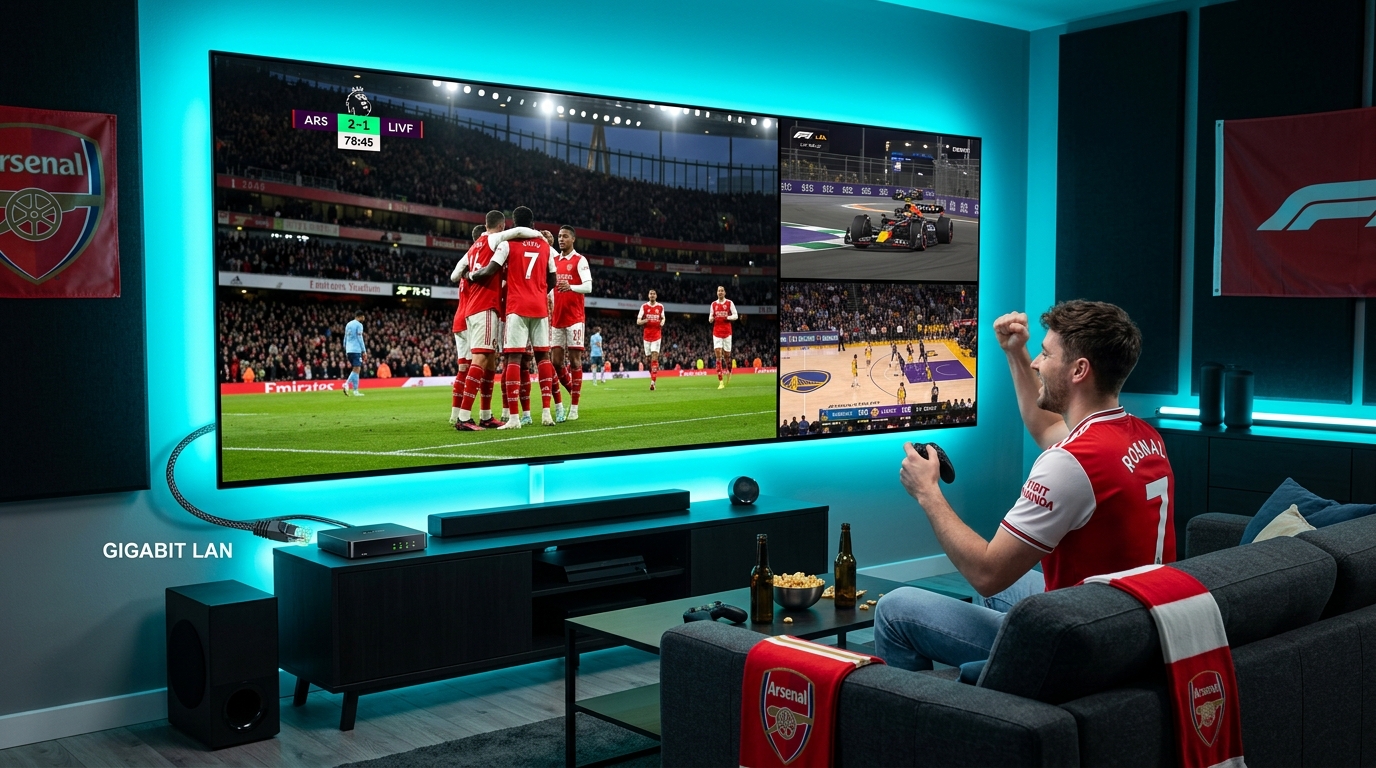
9. Multi-View Screen Splitting: Building a Sports Bar Command Center
On major sporting weekends—such as Premier League Saturday, NFL Sunday, or major tournament playoffs—multiple critical matchups occur simultaneously. Premium IPTV software allows you to transform your living room into an authentic sports bar command center.
+-----------------------------------+-----------------------------------+
| Screen 1: Premier League Football | Screen 2: Formula 1 Qualifying    |
| [Main Audio Focus Enabled]        | [Muted Live Stream]               |
|-----------------------------------+-----------------------------------|
| Screen 3: NBA Basketball          | Screen 4: UFC Prelims Under-Card  |
| [Muted Live Stream]               | [Muted Live Stream]               |
+-----------------------------------+-----------------------------------+
How to Configure Multi-View in TiviMate Premium
- Open TiviMate and tune into your primary sports broadcast.
- Long-press the Select / OK button on your remote control to reveal the on-screen options menu.
- Select Multi-View > Add Screen.
- Navigate your channel lineup and select your second concurrent live event.
- Repeat the process to add up to four simultaneous screens (or up to nine on high-end hardware like the Nvidia Shield TV Pro).
- Use your remote's directional arrows to instantly shift the live audio focus between screens as the action unfolds!
Bandwidth Requirement: Each additional 1080p 60 FPS stream consumes roughly 8 to 12 Mbps. A four-screen multi-view setup requires a steady, unthrottled internet connection of at least 50 to 80 Mbps, along with a multi-connection package from our pricing page.
10. Home Theater Audio: Stadium Surround Sound Immersion
Live sports immersion is not merely visual; the acoustic environment of a packed stadium—the roar of 60,000 fans, the crisp thump of a kicked ball, and the screech of basketball sneakers—is essential to the experience.
[IPTV Stream: 5.1 Dolby Digital Bitstream]
                    |
                    v
  [Streaming Box: Audio Passthrough Enabled]
                    |
                    v
[AV Receiver / Soundbar: Discrete 5.1 Speaker Channels]
- Center Channel Speaker : Crisp, Isolated Commentator Dialogue
- Left / Right Speakers  : Field-Level Stereo Action
- Rear Surround Speakers : Immersive 360-Degree Stadium Crowd Chants!
Configuring 5.1 Surround Sound Passthrough
- Connect your streaming hardware to your AV receiver or soundbar via HDMI ARC / eARC.
- In your IPTV player's audio settings, enable Audio Passthrough (Bitstream).
- This instructs the player to bypass internal stereo downmixing and transmit raw Dolby Digital (AC-3) bitstreams directly to your audio hardware.
- Result: Your soundbar or receiver separates commentator voices onto your center speaker while surrounding your living room with authentic stadium crowd noise!
11. EPG Organization: Tracking PPV and Live Event Channels
Major sporting events often broadcast across specialized, temporary event channels rather than standard 24/7 networks:
- Pay-Per-View (PPV) & Event Feeds: Big boxing matches, MMA title fights, and international motorsport often broadcast on dedicated numbered event streams (e.g., PPV Event 01, EFL Cup Feed 03).
- International Commentary Feeds: Professional IPTV services provide feeds with multiple commentary languages (English, Spanish, French, German, Arabic).
- Timezone Synchronization: Always verify your player app's EPG timezone offset in settings so program start times match your local wall clock precisely.
Consult our detailed device installation tutorials for platform-specific guide setup tips.
Experience NigmaTv
Upgrade your entertainment with ultra-stable, anti-freeze streaming. Access premium live channels, global sports, and curated VOD across all your supported devices.
12. Troubleshooting Live Sports Playback Issues
Use this rapid diagnostic matrix to resolve sports streaming anomalies:
1. The Ball Appears to Stutter or Judder During Fast Camera Pans
- Cause: Display refresh rate mismatch (e.g., watching a 50 FPS feed on a 60 Hz screen).
- Fix: Enable Auto Frame Rate (AFR) matching in your player settings or turn on Match Frame Rate in Apple TV settings. Turn off television motion smoothing (soap opera effect) in physical TV settings.
2. Stream Buffers Every Few Minutes During Big Games
- Cause: ISP bandwidth throttling or wireless radio interference.
- Fix: Switch from Wi-Fi to a wired Cat6 Ethernet cable. Activate a high-speed WireGuard VPN to bypass selective ISP evening traffic caps.
3. Commercials are Excessively Loud Compared to the Game
- Cause: Audio dynamic range shifts between live 5.1 stadium audio and compressed 2.0 commercial tracks.
- Fix: In your player's audio settings, enable Audio Normalization or turn on Night Mode (Dynamic Range Compression).
4. Primary Sports Feed Drops Offline
- Cause: Extreme server surge on a single origin feed.
- Fix: Switch immediately to an alternate backup feed (e.g., switching from the Home RSN to the Away RSN, or switching from an FHD link to an HD or international broadcaster feed).
5. Audio and Video Fall Out of Sync During the Match
- Cause: Hardware video decoder latency differing from audio DSP processing.
- Fix: In TiviMate or your player settings, tap the audio menu and adjust the Audio Delay slider by -150ms or +150ms until commentator lips align perfectly with player speech.
If you require personalized setup assistance, reach out directly to our 24/7 technical support desk.
Frequently Asked Questions
Conclusion: Engineering Your Personal Sports Broadcast Arena
Streaming live sports at the highest level of visual and acoustic fidelity is no longer reserved for expensive commercial satellite subscriptions. By understanding the underlying physics of digital video delivery, you can transform any modern living room into a world-class sports theater.
By demanding authentic 60 FPS broadcast streams, activating Auto Frame Rate matching, utilizing GPU hardware acceleration, and hardwiring your setup with Cat6 Gigabit Ethernet, you completely eliminate the buffering, judder, and pixelation that plague amateur setups.
At NigmaTv, our high-capacity, anti-freeze streaming infrastructure is engineered specifically to meet the grueling demands of live global sports. Experience pristine television by exploring our subscription plans, checking our comprehensive sports channel lineups, or connecting with our 24/7 support team today.