How to Watch Live NBA Basketball on IPTV: 60 FPS Setup, EPG Tracking & Anti-Buffering Guide
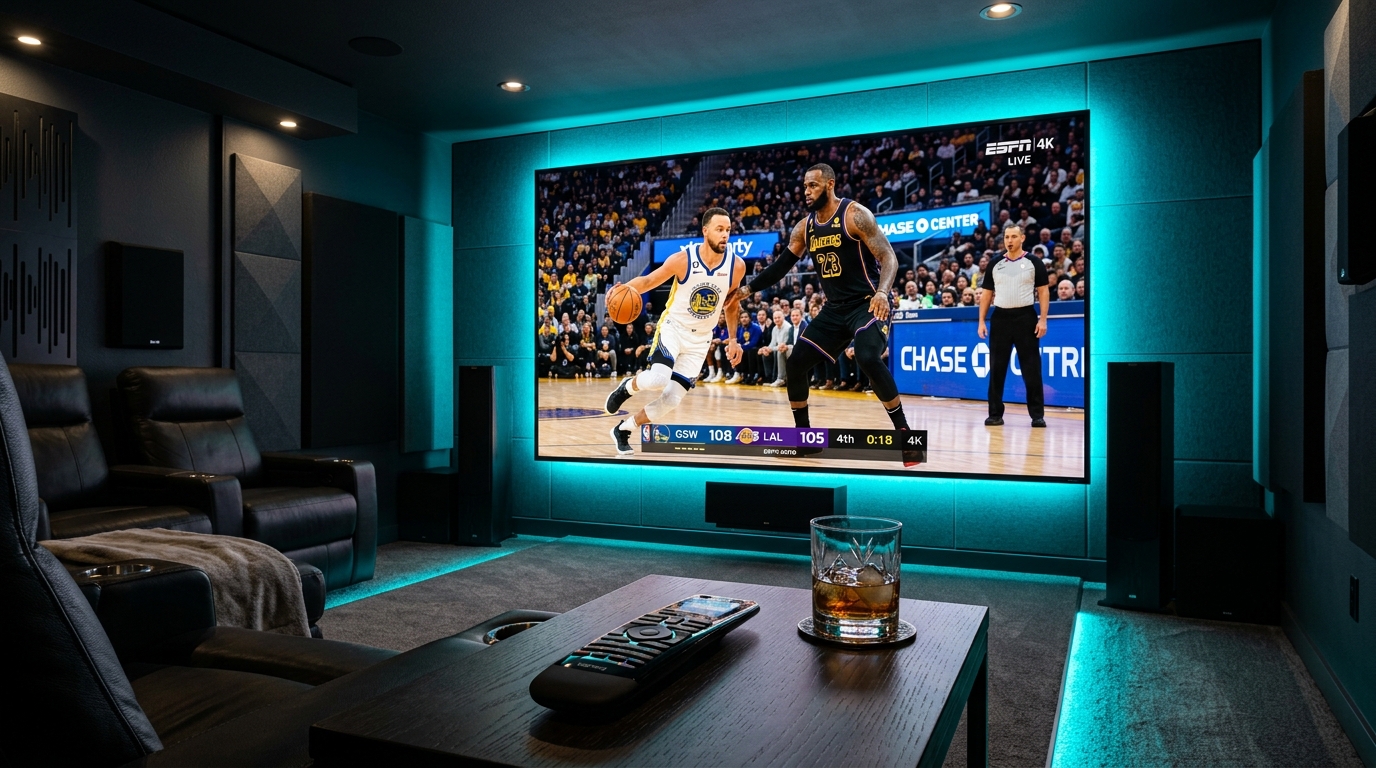
For dedicated basketball enthusiasts, streaming live NBA games represents the ultimate stress test for any home entertainment setup. Basketball is one of the fastest, most dynamic spectator sports in the world: ten elite athletes sprinting across a reflective hardwood floor, rapid cross-court passes, sudden fast-breaks, and high-velocity camera pans across packed stadium arenas.
Under standard streaming conditions, fast-action court sports reveal every vulnerability in a digital broadcast pipeline. Low-frame-rate feeds produce disorienting motion blur; underpowered video decoders drop frames during crucial buzzer-beater moments; and localized network congestion causes stream buffering precisely when game intensity peaks in the fourth quarter. Furthermore, navigating complex broadcast fragmentation across national networks, regional sports networks (RSNs), and restrictive geographic blackout rules on traditional cable often leaves fans unable to watch their hometown teams.
This comprehensive technical guide details how to configure, optimize, and master live NBA basketball streaming on IPTV. By understanding high-frame-rate video encoding (60 FPS), display refresh rate synchronization, electronic program guide (EPG) tracking, and robust network throughput, you can enjoy pristine, court-side television across all your favorite devices.
1. The Physics of Basketball Streaming: Why 60 FPS is Non-Negotiable
To understand why live basketball frequently appears blurry or stuttered on generic streaming platforms, one must look at how digital video captures and displays high-speed athletic motion.
[30 FPS Video: 1 Frame Every 33.3ms]  ===> Significant Motion Blur on Fast Passes
[60 FPS Video: 1 Frame Every 16.6ms]  ===> Crystal-Clear Ball Tracking & Fluid Motion
The Critical Difference Between 30 FPS and 60 FPS
Standard video entertainment (such as cinema films or conversational talk shows) is typically recorded at 24 FPS or 30 FPS. In cinematic productions, natural motion blur is aesthetically pleasing because human eye movement expects gradual transitions.
In professional basketball, however:
- A basketball thrown on a rapid full-court outlet pass travels at speeds exceeding 40 miles per hour (roughly 58 feet per second).
- At 30 Frames Per Second, the ball updates its physical position on your television screen only once every 33.3 milliseconds. During that time window, the basketball travels nearly two feet across the hardwood floor. On a 65-inch or 75-inch 4K screen, this causes the basketball to appear as an elongated, smudged streak, and fast player cuts produce ghosting artifacts.
- At 60 Frames Per Second (or 59.94 FPS NTSC standard), the display updates every 16.6 milliseconds. Visual temporal resolution is effectively doubled. Player jersey numbers remain sharp during sprint transitions, defensive rotations are crisp, and the ball retains its spherical integrity as it arcs toward the rim.
Bitrate Allocation and Compression Codecs for Live Court Action
Achieving genuine 60 FPS live sports requires sufficient bitrate and efficient video compression:
- H.264 / AVC at 60 FPS: Requires a steady bitrate of 8 to 12 Mbps to prevent macroblocking on high-contrast court hardwood lines.
- H.265 / HEVC at 60 FPS: Delivers superior edge definition and color gradation using 5 to 7 Mbps, making it the preferred standard for premium live sports delivery over internet protocol networks.
When browsing channels in your NigmaTv live sports directory, always prioritize channels carrying the FHD 60FPS or 4K UHD designation for live basketball coverage.
2. Navigating the NBA Broadcast Landscape on IPTV
One of the greatest advantages of an unrestricted IPTV subscription is bypassing the regional blackout restrictions that frustrate conventional cable and standalone league app subscribers. To find every game cleanly, you must understand how NBA broadcasting rights are distributed.
                                  [Live NBA Broadcasts]
                                            |
         +----------------------------------+----------------------------------+
         |                                                                     |
         v                                                                     v
[National Broadcasters]                                             [Regional Sports Networks]
- ESPN / ABC (Primetime & Finals)                                   - NBC Sports Bay Area / Chicago / Philly
- TNT Sports (Thursday Doubleheaders)                               - FanDuel Sports Networks (formerly Bally)
- NBA TV (Daily League Highlights)                                  - YES Network (Nets) / NESN (Celtics)
                                                                    - Altitude Sports / Spectrum SportsNet (Lakers)
1. National Broadcast Networks
During the regular season and playoffs, marquee matchups are broadcast nationally across the United States:
- ESPN & ABC (The Walt Disney Company): Carries Wednesday and Friday primetime games, Sunday showcase matchups, the NBA Christmas Day slate, the Eastern Conference Finals (alternating years), and exclusive broadcast rights to the NBA Finals.
- TNT Sports (Warner Bros. Discovery): Broadcasts marquee Tuesday and Thursday evening doubleheaders, NBA All-Star Weekend festivities, and alternating Conference Finals coverage.
- NBA TV: The league's dedicated 24/7 network broadcasting nightly out-of-market games, studio analysis, and international showcases.
2. Regional Sports Networks (RSNs)
While national games draw major headlines, over 80% of all 1,230 regular-season NBA games are produced and televised exclusively by Regional Sports Networks. In traditional cable models, regional blackouts prevent fans living within a franchise's home market from streaming these feeds without expensive local tier subscriptions.
On premium IPTV services, full regional feeds are available without artificial blackout filters:
- FanDuel Sports Network (formerly Bally Sports): Regional home to over a dozen NBA franchises across the Midwest, South, and Western regions (including the Cavaliers, Heat, Bucks, Timberwolves, and Clippers).
- NBC Sports Regional Networks: Home to the Golden State Warriors (NBC Sports Bay Area), Boston Celtics (NBC Sports Boston), Chicago Bulls (NBC Sports Chicago), and Philadelphia 76ers (NBC Sports Philadelphia).
- Independent & Team-Specific RSNs: Including the YES Network (Brooklyn Nets), MSG Network (New York Knicks), Altitude Sports (Denver Nuggets), and Spectrum SportsNet (Los Angeles Lakers).
3. Mastering EPG Schedules and Finding Game Feeds Quickly
Because multiple NBA games often tip off simultaneously at 7:00 PM and 10:30 PM Eastern Time, having an accurate, well-configured Electronic Program Guide (EPG) is essential for locating game feeds within seconds.
+-------------------------------------------------------------------------------+
| Electronic Program Guide (EPG) Game Search Flow                               |
| [Search Query: "Lakers" or "Warriors"]                                        |
|   -> Result 1: [NBA TV] 19:30 EST - Pre-Game Shootaround                      |
|   -> Result 2: [Spectrum SportsNet LA] 20:00 EST - Lakers vs. Warriors (Home) |
|   -> Result 3: [NBC Sports Bay Area] 20:00 EST - Lakers vs. Warriors (Away)   |
+-------------------------------------------------------------------------------+
Step-by-Step EPG Search Strategy
- Utilize Global Text Search in Your Player App: Rather than scrolling through hundreds of channels manually, use the global search tool inside TiviMate, IPTV Smarters Pro, or XCIPTV. Type the franchise name (e.g., "Celtics", "Bucks", or "Lakers"). The player will immediately display every active channel broadcasting that matchup.
- Select Between Home and Away Announcer Feeds: Major IPTV networks frequently provide both the Home broadcast (featuring local home commentators and local arena cameras) and the Away broadcast.
- Verify Timezone Offset Settings: Basketball schedules are published in Eastern Standard Time (EST) or Coordinated Universal Time (UTC). If your TV guide shows tip-off times shifted by several hours, open your player's EPG settings and adjust the Time Shift offset until game times match your local wall clock precisely.
4. Display Optimization: Frame Rate Matching and Refresh Rates
A common, frustrating technical flaw encountered by sports streamers is the "judder effect"—a subtle, repetitive visual micro-stutter that occurs even when your internet connection is blazing fast. This stutter is caused by a mathematical mismatch between the stream's broadcast frame rate and your television's display refresh rate.
[Stream: 59.94 / 60 FPS Native Broadcast]
                    |
      [Display Locked at 50 Hz PAL or 24 Hz Film]
                    |
[Result: Frame Dropping / Pulldown Judder Every Second!]
How Display Refresh Mismatches Cause Stutter
North American sports broadcasts run natively at 59.94 Hz or 60.00 Hz. European sports channels (such as Sky Sports or TNT UK) broadcast at 50.00 Hz.
- If your streaming device (such as an Apple TV or Firestick) is locked to output 50 Hz to your television, but you are watching a 60 FPS American NBA feed, the display hardware must periodically drop 10 frames every second to maintain audio synchronization.
- To the viewer, this manifests as a jarring stutter every time the camera pans across the basketball court.
How to Enable Auto Frame Rate (AFR) Matching
To eliminate judder completely, configure your hardware and player software to dynamically match the stream's native frame rate:
1. On Apple TV 4K (tvOS)
- Open Apple TV Settings > Video and Audio.
- Select Match Content.
- Turn Match Dynamic Range to On, and turn Match Frame Rate to On.
- The Apple TV will automatically adjust its HDMI clock output between 24Hz, 50Hz, 59.94Hz, and 60Hz depending on the active stream.
2. On Android TV / Fire TV Stick (via TiviMate)
- Open TiviMate Settings > Playback.
- Locate the setting titled Auto Frame Rate (AFR) and toggle it to ON.
- Choose whether to match frame rate only or both frame rate and screen resolution. When you tune into a 60 FPS NBA stream, your TV screen will briefly refresh and lock into pristine 60 Hz playback.
5. Network Tuning for High-Speed Live Basketball
Live sports streaming is unforgiving of wireless packet loss. While on-demand platforms (like Netflix or Prime Video) can buffer 30 to 60 seconds of video ahead of your viewing position, live IPTV operates near real-time, holding only a 1 to 3-second buffer. Any momentary drop in wireless signal immediately causes stream interruptions.
+-------------------------------------------------------------+
| Home Network Sports Reliability Hierarchy                    |
| [Tier 1: Cat6 Ethernet Hardwire] =====> Zero Jitter / Best  |
| [Tier 2: 5 GHz Wi-Fi (Wi-Fi 6)]  =====> Low Interference    |
| [Tier 3: 2.4 GHz Wi-Fi]         =====> Vulnerable to Jitter |
+-------------------------------------------------------------+
1. Hardwired Cat6 Ethernet Connection
Whenever possible, connect your streaming device directly to your router using a physical Ethernet cable:
- Fire TV Stick Users: Utilize an official Amazon Ethernet Adapter or an inexpensive micro-USB/USB-C OTG Gigabit Ethernet hub.
- Apple TV 4K & Nvidia Shield: Utilize the integrated 1 Gbps Ethernet port on the rear of the unit.
- Benefit: Wired Ethernet eliminates wireless channel congestion, microwave interference, and wall penetration loss, ensuring ping times remain rock-solid under 15 milliseconds.
2. Optimizing 5 GHz Wi-Fi Channels
If physical Ethernet cabling is impractical, configure your wireless network for optimal sports delivery:
- Connect exclusively to your router's 5 GHz frequency band. Avoid the 2.4 GHz band, which suffers severe radio interference from Bluetooth devices, baby monitors, and neighboring Wi-Fi routers.
- In your router's administration settings, select an uncluttered 5 GHz channel (such as Channel 36, 44, or 149) with 80 MHz channel width.
3. Router Quality of Service (QoS) Priority
In busy households where multiple family members stream video, download large game updates, or conduct video calls simultaneously, enable Quality of Service (QoS) on your home router:
- Assign your streaming TV's MAC address to the Highest Priority traffic queue.
- This ensures that sudden background downloads on a computer cannot steal bandwidth from your live basketball stream during the fourth quarter.
For a comprehensive analysis of broadband metrics, explore our detailed guide on internet speed requirements for IPTV.
6. Hardware Recommendations: Choosing the Best Streaming Devices for Sports
Not all streaming hardware possesses the silicon required to decode high-bitrate, multi-stream sports feeds smoothly. Below are the top streaming platforms evaluated specifically for live sports capability:
| Streaming Hardware | GPU Video Decoding | 60 FPS Sports Fluidity | Multi-View Capable | Network Interface |
|---|---|---|---|---|
| Apple TV 4K (3rd Gen) | A15 Bionic GPU | Exceptional (Industry Best) | Yes (In supported apps) | Gigabit Ethernet & Wi-Fi 6 |
| Nvidia Shield TV Pro | Tegra X1+ 256-core | Exceptional (AI 4K Upscale) | Yes (Up to 9 Screens) | Gigabit Ethernet & Wi-Fi 5 |
| Fire TV Stick 4K Max | Mediatek MT8696T | Very Good | Yes (Up to 4 Screens) | Wi-Fi 6E (Ethernet via OTG) |
| Chromecast with Google TV | Amlogic S905X3 | Good | Limited (2 Screens) | Wi-Fi 5 (Ethernet via hub) |
| Budget Smart TV (Built-in) | Low-power TV SoC | Moderate / Variable | No | 100 Mbps LAN or 2.4GHz Wi-Fi |
Why Dedicated Streaming Boxes Outperform Built-in TV Apps for Sports
While modern smart TVs from Samsung and LG are convenient, their built-in system-on-chips (SoCs) are engineered primarily to run basic television menus and low-bitrate on-demand apps. They often throttle processor speeds when handling continuous 60 FPS video decodes, leading to micro-stutters. A dedicated external box (such as the Apple TV 4K or Fire TV Stick 4K Max) features active cooling, robust RAM, and superior graphics processing.
Consult our step-by-step device installation tutorials for complete configuration instructions for your specific streaming hardware.
7. Multi-View Screen Splitting: Watching Multiple Games at Once
During the NBA regular season and particularly during the NBA In-Season Tournament and Playoffs, multiple critical matchups frequently occur at the same time. Advanced IPTV player software allows sports fans to transform their living room into a sports bar command center.
+-----------------------------------+-----------------------------------+
| Screen 1: Boston vs. Philadelphia | Screen 2: Milwaukee vs. New York  |
| [Active Audio Focus]              | [Muted Live Video Feed]           |
|-----------------------------------+-----------------------------------|
| Screen 3: Denver vs. Phoenix      | Screen 4: Golden State vs. Lakers |
| [Muted Live Video Feed]           | [Muted Live Video Feed]           |
+-----------------------------------+-----------------------------------+
How to Configure Multi-View in TiviMate Premium
- Open TiviMate and tune into your first live NBA matchup.
- Long-press the Select or OK button on your remote control to open the playback menu.
- Select Multi-View > Add Screen.
- Browse your sports channel lineup and select your second concurrent game.
- Repeat the process to add up to four (or on high-end hardware like the Nvidia Shield, up to nine) simultaneous live streams.
- Use the directional arrows on your remote to move audio focus between screens instantly.
Note: Multi-view screen splitting streams multiple live feeds simultaneously over your internet connection. Ensure your home bandwidth is at least 40 to 60 Mbps and verify that your NigmaTv subscription plan includes adequate concurrent connections.
8. Broadcast Engineering Behind NBA Feeds: SCTE-35 Signals, Uplinks & Audio Dynamics
For viewers seeking an authentic broadcast-grade experience, understanding the technical mechanics behind professional basketball television distribution provides vital context for solving common audio and video anomalies.
Satellite Uplinks and Terrestrial Fiber Distribution
Professional basketball broadcasts originate inside state-of-the-art mobile production trucks parked outside NBA arenas. High-definition video signals captured by 20 or more arena cameras (including courtside robotic cameras, baseline super-slo-mo cameras, and aerial cable cams) are mixed in real time by the broadcast director.
- The uncompressed SDI master output is fed into an uplink satellite dish operating on C-band or Ku-band frequencies, or routed over high-capacity dark fiber lines directly to broadcast network hubs (such as ESPN's facility in Bristol, Connecticut, or TNT's broadcast center in Atlanta, Georgia).
- Primary distribution signals utilize high-bitrate MPEG-2 or AVC-Intra formats with bitrates exceeding 40 to 60 Mbps to maintain zero compression artifacts.
- IPTV distribution platforms capture these primary feeds, de-interlace the video, and transcode the signal into HEVC (H.265) or H.264 transport streams optimized for consumer internet protocol delivery at 60 FPS.
SCTE-35 Digital Program Insertion (DPI) and Commercial Transitions
Have you ever noticed that audio volume suddenly surges, or a live stream briefly stutters for a fraction of a second when a game cuts to a commercial break? This phenomenon is governed by SCTE-35 signaling:
- SCTE-35 is the international telecommunications standard that injects digital cue markers into video transport streams, notifying downstream servers that a local commercial break or station identification is beginning.
- When an automated system switches from the live arena camera feed to a pre-recorded commercial reel, the audio encoding profile often shifts from multi-channel 5.1 surround sound to high-compression 2.0 stereo.
- If your IPTV player's audio decoder is set to pass through raw bitstreams, your AV receiver may take 200 milliseconds to re-lock the audio clock, creating a momentary silence or volume jump. Enabling Audio Normalization or Night Mode (Dynamic Range Compression) inside your player settings smooths out these commercial volume spikes.
9. DVR Recording and Cloud Timeshift for Global Basketball Fans
Because NBA games are scheduled primarily in evening time slots across North American timezones (Eastern, Central, Mountain, and Pacific), international viewers living in Europe, the Middle East, or Asia often face games tipping off at 1:00 AM, 3:30 AM, or 4:30 AM local time.
+-------------------------------------------------------------------------+
| Live Game (02:30 AM Local Time) ---> Scheduled Timer Recording Initiated|
|                                    |                                    |
|                                    v                                    |
| [Local USB Drive / Network Storage (NAS)] <--- Saves Raw MPEG-TS Stream |
|                                    |                                    |
|                                    v                                    |
| Viewer Awakes at 07:00 AM ---> Full Game Ready for Ad-Free Playback!    |
+-------------------------------------------------------------------------+
Setting Up Scheduled Recordings in TiviMate
If your schedule prevents watching games live, advanced player software allows you to automate complete game recordings:
- Connect External Storage: Because a 2.5-hour 60 FPS basketball game consumes 8 to 14 GB of storage, internal streaming stick memory (often only 4 to 8 GB total) is insufficient. Connect a fast USB 3.0 flash drive or external SSD to your Firestick or Android TV box using an OTG adapter cable, formatted to FAT32 or exFAT.
- Configure Storage Path: In TiviMate settings, navigate to Other > Recording > Recording folder and select your external USB storage or local Network Attached Storage (NAS) share over SMB.
- Schedule via EPG: In your EPG TV guide, navigate to the upcoming basketball game, long-press the OK/Select button, and choose Record.
- Add Safety Buffer Padding: Always add 15 to 30 minutes of end padding to sports recordings. Basketball games frequently extend beyond their scheduled broadcast window due to commercial timeouts, foul reviews, and overtime periods.
10. Troubleshooting Live Sports Playback Issues
If you encounter unexpected playback interruptions while streaming live basketball, use this diagnostic sequence to identify and fix the issue rapidly:
1. Stream Freezes Every 10 to 15 Seconds
- Cause: Video buffer underrun caused by player buffer settings or wireless interference.
- Fix: In your player's playback settings, increase the buffer size from None to Small or Medium (1.5 seconds). If using Wi-Fi, reboot your router or switch to a wired Ethernet connection.
2. Audio is Out of Sync with Video Actions
- Cause: Timestamp drift in the local video decoder.
- Fix: Open your player's on-screen display menu, navigate to Audio Settings, and locate Audio Delay / Sync. Adjust the offset by +100ms or -100ms until player sneaker squeaks and referee whistles match physical screen action.
3. Video Appears "Ghosted" or Smudged During Fast Camera Sweeps
- Cause: Television motion smoothing (soap opera effect) or de-interlacing conflict.
- Fix: On your physical television, go to Picture Settings > Expert Settings and turn off Motion Smoothing (e.g., Auto Motion Plus, TruMotion, or Motionflow). Set picture mode to Game Mode or Cinema Mode to preserve authentic broadcast frames.
4. Channel Fails to Connect Just Before Tip-Off
- Cause: Server load surge on a specific broadcast feed.
- Fix: Switch immediately to an alternate feed (e.g., switching from the Home RSN to the Away RSN, or switching from an FHD stream to an HD or international broadcaster feed). Premium services maintain multiple redundant feeds for every major league game.
If you require personalized setup assistance, reach out directly to our 24/7 technical support team.
Frequently Asked Questions
8. Network-Attached Storage (NAS) & Cloud Recording for Basketball Fans
Because NBA regular-season games often take place on weekday evenings across varying North American time zones (Eastern, Central, Mountain, and Pacific), many European and international basketball fans cannot watch games live. Configuring local or network recording allows you to enjoy every matchup on demand without spoilers:
+----------------------------------------------------------------------------+
| IPTV Sports Recording Pipeline                                             |
| [Live Stream Ingestion] ---> [TiviMate Recording Engine]                   |
|                                    |                                       |
|               +--------------------+--------------------+                  |
|               |                                         |                  |
|               v                                         v                  |
|    [Local USB 3.0 Flash Drive]               [Network NAS via SMB Share]   |
|    - Direct write access                     - Multi-terabyte capacity     |
|    - Portability across TVs                  - Accessible across all TVs   |
+----------------------------------------------------------------------------+
- Setting Up SMB Network Shares: In TiviMate Settings > Recording, select Custom Folder and choose SMB (Server Message Block). Enter your NAS IP address, username, and password.
- Padding Live Sports Timers: Unlike scripted television with rigid 30-minute blocks, NBA games regularly feature coach challenges, extended timeouts, free-throw reviews, and multiple overtimes. Configure an automatic 45-minute end padding on all scheduled game recordings.
- Bandwidth Considerations: Remember that recording a 60 FPS live sports stream writes approximately 3.5 to 5.0 GB per hour to storage and consumes 8 to 12 Mbps of continuous download bandwidth. Verify that your household internet plan has sufficient download headroom.
Conclusion: Achieving the Ultimate Courtside Viewing Experience
Transforming your home into a premium basketball viewing arena requires more than just a high-definition television; it requires an optimized end-to-end streaming architecture. By prioritizing authentic 60 FPS broadcast streams, configuring display frame rate synchronization, hardwiring your streaming hardware via Ethernet, and mastering your player app's electronic program guide, you eliminate the buffering and motion blur that ruin live sports.
At NigmaTv, our enterprise-grade streaming infrastructure is engineered specifically for the intense demands of live sports broadcasting. Enjoy uninterrupted access to every regular-season matchup, marquee holiday showcase, and playoff buzzer-beater with pristine visual fidelity.
Ready to elevate your game-day experience? Explore our IPTV subscription packages, browse our comprehensive sports channel lineups, or connect with our dedicated support team to get started today.