What Internet Speed Do You Need for IPTV? Complete Bandwidth, Latency & 4K Streaming Guide
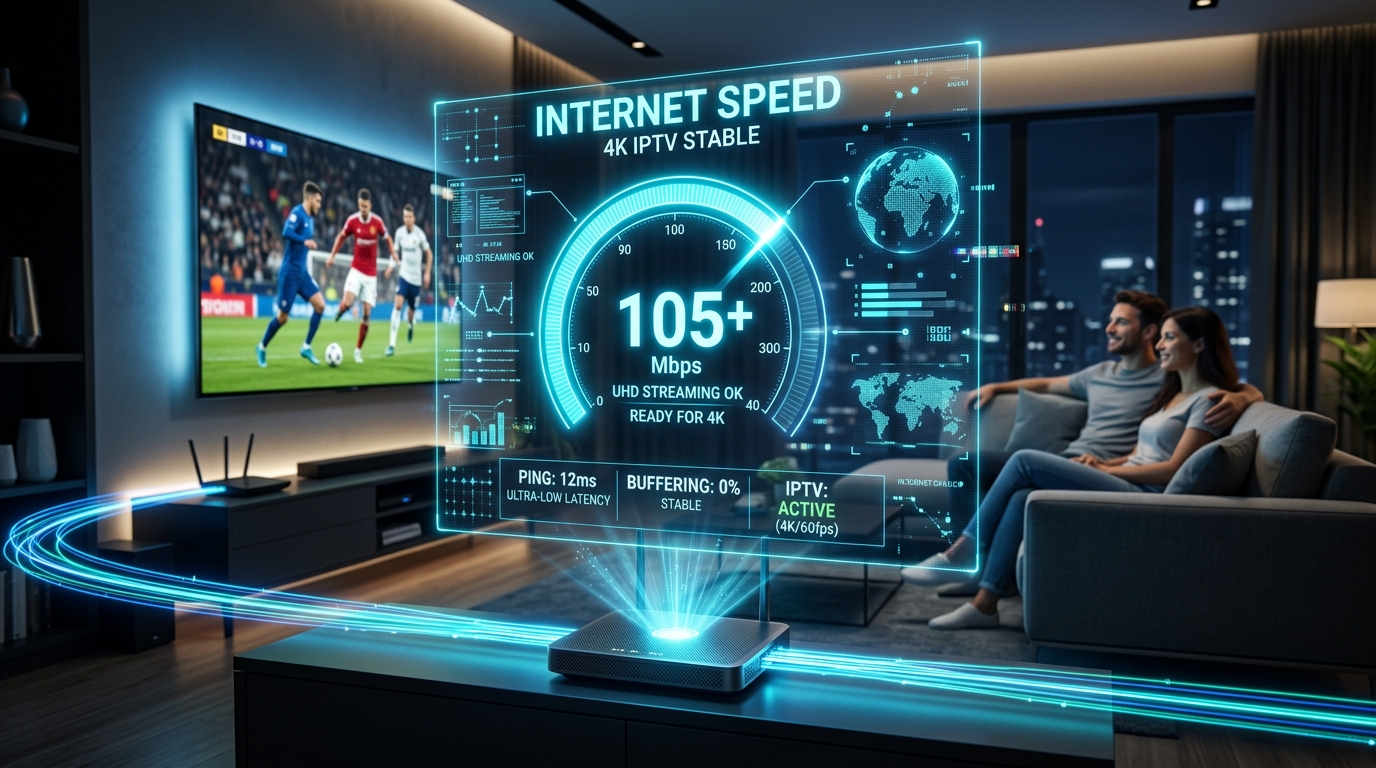
One of the most persistent misconceptions among digital streaming consumers is that raw download speed is the sole factor determining whether television streams play smoothly. Subscribers frequently ask: "I have a 500 Mbps or 1 Gigabit fiber-optic internet connection—why is my live sports stream still stuttering or buffering?"
The answer lies in understanding the profound difference between burst bandwidth and real-time network transmission integrity. Downloading a static file or buffering a movie on Netflix is fundamentally different from streaming live broadcast television. While on-demand video platforms can download and store minutes of future video data in local device memory, live sports and real-time news streams operate with near-zero latency. A live stream demands a continuous, uninterrupted, and jitter-free arrival of internet protocol data packets every millisecond.
If intermediate network routing suffers from packet loss, high latency (ping), wireless radio interference, bufferbloat, or selective Internet Service Provider (ISP) throttling, even a Gigabit connection will fail to deliver smooth video playback.
This definitive technical guide provides an exhaustive breakdown of the actual broadband metrics required for flawless IPTV streaming. We analyze minimum Mbps thresholds across SD, Full HD, and 4K resolutions, calculate real-world household concurrency, demystify ping and packet jitter, compare Wi-Fi frequencies against wired Ethernet, and explain how to optimize your home router for zero-lag entertainment.
1. The Core Four Network Metrics: Beyond Raw Mbps
To understand how your internet connection interacts with an IPTV provider, you must evaluate four distinct network performance metrics:
+--------------------------------------------------------------------------+
| The 4 Pillars of IPTV Network Performance                                |
| 1. BANDWIDTH (Mbps)   : The pipe diameter (How much data flows per sec)  |
| 2. LATENCY / PING (ms): The transit time (How fast data travels round-trip)|
| 3. JITTER (ms)        : Packet arrival variance (The consistency of ping)|
| 4. PACKET LOSS (%)    : Dropped data chunks (Data that never arrived)    |
+--------------------------------------------------------------------------+
1. Download Bandwidth (Megabits Per Second - Mbps)
Bandwidth represents the maximum volume of data your internet connection can transfer in a single second. While essential, bandwidth merely defines capacity. A 4K stream requires roughly 25 to 40 Mbps of continuous throughput. Having a 300 Mbps connection ensures you have ample headroom, but bandwidth alone does not guarantee uninterrupted delivery if the other three metrics are degraded.
2. Latency (Ping in Milliseconds)
Latency is the time delay required for a packet of data to travel from your streaming device to the IPTV origin or edge server and return.
- Ideal Latency: Sub-30 milliseconds (typical on local fiber connections).
- Acceptable Latency: 30ms to 70ms.
- Problematic Latency: Exceeding 100ms. High latency slows down initial channel handshakes (zapping time) and delays TCP packet acknowledgments.
3. Jitter (Packet Arrival Variance)
Jitter measures the fluctuation in latency over time. For example, if your ping is 20ms on one packet, 110ms on the next, and 35ms on the third, your connection exhibits severe jitter.
- In live television streaming, video frames must be decoded at precise mathematical intervals (e.g., exactly every 16.6 milliseconds for a 60 FPS broadcast).
- If video packets arrive in irregular bursts due to jitter, the hardware decoder's buffer empties before the next burst arrives, causing audio stutter and micro-freezes.
4. Packet Loss (The Ultimate Stream Killer)
Packet loss occurs when network packets traveling across the internet fail to reach their destination due to router buffer congestion, wireless radio noise, or faulty cabling.
- Even 1% to 2% packet loss is catastrophic for live streaming. A single dropped video packet corrupts an entire MPEG transport stream frame, forcing the decoder to drop the frame and display visual macroblocking, pixelation, or black screens.
2. Bandwidth Requirements by Resolution and Frame Rate
Different video resolutions, frame rates, and compression codecs demand varying amounts of continuous data throughput. Below is an authoritative technical benchmark detailing minimum and recommended bandwidth requirements per active television screen:
| Stream Resolution | Video Codec | Frame Rate | Sustained Stream Bitrate | Minimum Internet Speed per Device | Recommended Speed (Headroom) |
|---|---|---|---|---|---|
| SD (Standard Def - 480p/576i) | H.264 / MPEG-2 | 25 / 30 FPS | 1.5 - 2.5 Mbps | 5 Mbps | 10 Mbps |
| HD (High Definition - 720p) | H.264 / AVC | 30 / 50 FPS | 3.5 - 6.0 Mbps | 12 Mbps | 20 Mbps |
| Full HD (1080p Standard) | H.264 / AVC | 30 FPS | 6.0 - 9.0 Mbps | 20 Mbps | 30 Mbps |
| Full HD 60 FPS (Live Sports) | H.265 (HEVC) / H.264 | 50 / 60 FPS | 8.0 - 14.0 Mbps | 30 Mbps | 45 Mbps |
| 4K Ultra HD (2160p HDR) | H.265 (HEVC) | 60 FPS | 18.0 - 28.0 Mbps | 45 Mbps | 70 Mbps |
| 4K Uncompressed Broadcast | H.265 / AV1 | 60 FPS | 30.0 - 45.0 Mbps | 60 Mbps | 100 Mbps |
Why Recommended Speeds Include a 50% Safety Margin
Notice that the recommended internet speed is roughly double the raw stream bitrate. This safety margin accounts for:
- Network Overhead: TCP/IP headers, TLS encryption wrappers, and DNS queries consume approximately 5% to 8% of total network throughput.
- Bitrate Spikes (Variable Bitrate - VBR): High-definition broadcasts do not stream at a completely flat bitrate. During a calm news anchor segment, a 1080p feed may require only 5 Mbps. But when the broadcast cuts to an explosive stadium fireworks display or a high-velocity sports camera pan, visual complexity surges, and the encoder temporarily spikes to 16 Mbps. Without bandwidth headroom, these spikes cause immediate buffering.
Explore how our optimized, high-efficiency encoding infrastructure delivers pristine feeds across our live channel directory.
3. Real-World Household Concurrency: Calculating Total Bandwidth
When planning your home internet connection for IPTV, calculating bandwidth for a single television screen is insufficient. Modern households operate multiple connected devices simultaneously: smartphones, tablets, laptops, gaming consoles, and smart home appliances.
+--------------------------------------------------------------------------+
| Household Evening Peak Bandwidth Demand Model (Family of 4)              |
| - Living Room 4K IPTV Stream (Sports Match at 60 FPS)    : 35 Mbps       |
| - Bedroom 1080p IPTV Stream (Movies / Series)            : 15 Mbps       |
| - Teenager Online Gaming (PlayStation 5 / Xbox Series X) : 10 Mbps (Low Ping)
| - Remote Work Video Call / Cloud Backup Upload           : 15 Mbps       |
| - Background Mobile App Updates, Social Feeds & Smart Home: 10 Mbps      |
|--------------------------------------------------------------------------|
| Total Minimum Sustained Household Demand                 : 85 Mbps       |
| Recommended ISP Broadband Plan Tier                      : 150 - 300 Mbps|
+--------------------------------------------------------------------------+
The Multi-Device Rule of Thumb
To ensure that one family member starting a download or streaming a movie does not disrupt another viewer's live sports broadcast:
- Single Person Household: 50 Mbps broadband plan is adequate.
- Couple / 2 Viewers: 100 Mbps broadband plan ensures comfortable headroom.
- Family of 3 to 5: 200 Mbps to 500 Mbps fiber or cable connection provides full immunity from localized bandwidth starvation.
Review the multi-screen subscription tiers available on our pricing page to select an account that supports your household's concurrent viewing habits.
4. Wi-Fi vs. Wired Ethernet: The Battle for Network Stability
Wireless networking has improved dramatically with the advent of Wi-Fi 6, Wi-Fi 6E, and Wi-Fi 7. However, when it comes to real-time, low-latency television streaming, physical copper cabling remains fundamentally superior to radio waves.
+-------------------------------------------------------------------------+
| Physical Connection Topology Comparison                                 |
| [Cat6 Ethernet Cable]  ===> 0% Packet Loss | Constant 1ms Gateway Ping  |
| [5 GHz Wi-Fi (Clean)]  ===> <0.5% Loss     | 3-8ms Ping (Good Line-Sight)|
| [2.4 GHz Wi-Fi (Crowded)]==> 2-5% Loss     | 15-80ms Ping (Jitter Prone)|
+-------------------------------------------------------------------------+
1. The Vulnerabilities of 2.4 GHz Wi-Fi
The 2.4 GHz wireless frequency operates across only three non-overlapping channels (Channels 1, 6, and 11).
- In urban areas or apartment complexes, dozens of neighboring routers compete for the exact same radio spectrum.
- Furthermore, household appliances—including microwave ovens, Bluetooth speakers, cordless phones, and baby monitors—emit radio noise directly on the 2.4 GHz band.
- When an interference burst occurs, your streaming stick drops dozens of packets, resulting in immediate playback freezes. Never use 2.4 GHz Wi-Fi for live IPTV streaming.
2. The 5 GHz and 6 GHz Advantage
The 5 GHz frequency band provides dozens of wider, non-overlapping channels with significantly higher data throughput and minimal neighborhood interference. If physical cabling is impossible:
- Ensure your streaming device connects exclusively to your router's 5 GHz network.
- Position the router within direct line-of-sight of your television, or deploy a dedicated wired mesh access point nearby.
3. The Unrivaled Reliability of Cat6 Ethernet
A physical Cat6 Ethernet cable is completely impervious to radio frequency interference, wall attenuation, and neighborhood wireless congestion:
- Packet delivery is deterministic, with local gateway ping times locked at sub-1 millisecond.
- Jitter is virtually zero.
- For Amazon Fire TV Stick users, connecting an inexpensive USB OTG Ethernet adapter transforms streaming reliability immediately.
For device-specific connection tutorials, consult our installation guides.
5. Alternative High-Performance Home Networking: MoCA 2.5 vs. Powerline AV2
In many residential homes, running a continuous Cat6 Ethernet cable from the main router in the office to the living room television requires drilling through walls or running unsightly surface cables. Fortunately, two advanced wired alternatives deliver near-Ethernet stability without requiring new physical cabling.
+-------------------------------------------------------------------------+
| Alternative Wired Media Comparison                                      |
| 1. MoCA 2.5 (Coaxial Cable Network)  ===> Up to 2,500 Mbps | 1-2ms Ping  |
| 2. Powerline AV2 (Home Electrical)   ===> 100 - 300 Mbps   | 4-15ms Ping |
| 3. Tri-Band Mesh Dedicated Backhaul  ===> 300 - 600 Mbps   | 3-8ms Ping  |
+-------------------------------------------------------------------------+
1. MoCA 2.5 (Multimedia over Coax Alliance) — The Secret Weapon
Most homes built over the last 40 years feature black RG6 coaxial television cable ports in nearly every room.
- How it Works: MoCA 2.5 network adapters convert existing in-wall coaxial television cabling into a dedicated, enterprise-grade Ethernet pipeline capable of delivering up to 2.5 Gbps of symmetrical throughput.
- Performance for IPTV: MoCA introduces less than 2 milliseconds of local latency and zero packet loss, operating completely independently of wireless radio waves. It is the premier networking solution for large homes where direct Cat6 Ethernet is unavailable.
2. HomePlug AV2 (Powerline Networking)
Powerline adapters transmit network data signals across your home's existing copper electrical wiring:
- How it Works: You plug one adapter near your router and connect it via Ethernet, then plug the second adapter into the electrical wall outlet behind your television.
- Caveats: Powerline performance depends heavily on home electrical wiring age and breaker box configuration. If both outlets sit on different electrical phases, or if heavy appliances (like washing machines or refrigerators) cycle on, powerline signals can experience brief noise bursts. However, for many users, Powerline AV2 still delivers far more consistent ping times than crowded 2.4 GHz Wi-Fi.
6. TCP Congestion Control Algorithms: BBR vs. CUBIC in Live Streaming
Beneath the operating system level, how network servers manage data packet delivery is governed by TCP Congestion Control Algorithms. Understanding this mathematical framework reveals why modern streaming architectures like NigmaTv outperform legacy providers.
[Legacy CUBIC TCP] : Increases speed until packets drop -> Panics & halves speed! (Buffering!)
[Google BBR v2/v3] : Probes bandwidth & round-trip time -> Zero packet drops! (Smooth 4K!)
The Flaws of Legacy CUBIC Algorithm
For two decades, the default congestion control algorithm across Linux and Windows servers has been CUBIC:
- CUBIC assumes that packet loss is always caused by network buffer saturation.
- When an IPTV connection experiences a minor, temporary wireless hiccup, CUBIC mistakenly assumes the entire network pipe is clogged and immediately slashes transmission speed by up to 50%.
- This sudden throttling starves your player's video buffer, triggering a visible loading circle.
The Superiority of Google BBR (Bottleneck Bandwidth and RTT)
Modern high-performance IPTV networks deploy Google BBR (Bottleneck Bandwidth and Round-trip propagation time) at the server kernel level:
- BBR does not wait for packet loss to react. Instead, it continuously measures the physical maximum bandwidth of the connection and the actual physical transit time.
- BBR maintains maximum throughput without over-filling intermediate router queues, preventing bufferbloat and maintaining smooth 4K 60 FPS video delivery even across imperfect consumer broadband lines.
7. ISP Throttling, Deep Packet Inspection (DPI), and VPN Optimization
One of the most frustrating experiences for cord-cutters occurs when their internet speed test reports 300 Mbps, yet their IPTV stream constantly buffers. This discrepancy is frequently the result of deliberate ISP Bandwidth Throttling.
[IPTV Traffic (Unencrypted Port 8080)] ---> [ISP Deep Packet Inspection (DPI)]
                                                        |
                                                        v
                                            [ISP Throttles Speed to 2 Mbps!]
                                                        |
                                                        v
                                            [Constant Stream Buffering!]
How Internet Service Providers Throttle Streaming
During peak evening hours (between 7:30 PM and 11:00 PM), overall internet demand surges. To avoid spending millions upgrading regional fiber backbones, some ISPs deploy Deep Packet Inspection (DPI) firewalls:
- Automated network filters inspect incoming packet headers. When they detect continuous, high-bitrate multimedia traffic streams originating from IPTV server ports, they artificially cap bandwidth on that specific connection to 2 or 3 Mbps.
- Because standard speed test servers (such as Ookla Speedtest or Fast.com) are whitelisted by ISPs, speed tests report lightning-fast speeds while your actual television stream is starved of data.
How a Virtual Private Network (VPN) Bypasses Throttling
A premium Virtual Private Network establishes an encrypted tunnel between your streaming hardware and a remote VPN server:
- All data packets are encrypted using modern ciphers (such as ChaCha20 or AES-256).
- Your ISP can see only that data is passing between your router and a VPN IP address; they cannot inspect packet headers or determine that you are streaming live television.
- Because the ISP cannot identify the traffic, automated protocol throttling cannot engage.
Choosing the Right VPN Protocol for Live Sports
- WireGuard Protocol (Recommended): An ultra-lean, modern protocol that introduces less than 3% bandwidth overhead and sub-5ms latency penalty, making it ideal for live 4K 60 FPS sports.
- OpenVPN UDP: A robust fallback protocol if WireGuard is blocked by local network firewalls.
- Avoid OpenVPN TCP: TCP over TCP introduces massive latency overhead and worsens stream buffering.
6. Eliminating Bufferbloat: Router Quality of Service (QoS) and SQM
Many users assume that buffering is always caused by the internet provider or the IPTV service. However, a major hidden culprit lurks inside your home router: Bufferbloat.
[Normal Operation]      : Small Queue -> Instant Packet Delivery (15ms Ping)
[Bufferbloat Saturated] : Massive Queue -> Packets Wait in Line (350ms Ping Spike!)
What is Bufferbloat?
When an internet connection is placed under heavy concurrent load (such as a laptop uploading a large file to Google Drive while another family member downloads a game update), routers attempt to prevent packet drops by holding excess packets in large memory buffers.
- As packets accumulate in this oversized queue, latency spikes from 20ms to 400ms or higher.
- Your real-time IPTV packets become trapped behind bulk file transfers, causing sudden stream stalls.
The Fix: Smart Queue Management (SQM)
Modern routers equipped with advanced firmware (such as Asus Merlin, OpenWrt, or eero TrueMesh) support Smart Queue Management (SQM) powered by algorithms like CAKE or FQ-CoDel:
- Access your router's administration portal.
- Navigate to Quality of Service (QoS) and select SQM or Adaptive QoS.
- Set your upload and download speed limits to roughly 90% to 95% of your ISP's advertised maximum. This prevents your broadband modem's unmanaged buffer from ever filling up.
- SQM automatically prioritizes real-time, time-sensitive video packets over bulk file transfers, completely eliminating bufferbloat even when your network is running at maximum capacity.
7. Public DNS Accelerators: Shaving Milliseconds off Stream Handshakes
Every time your player requests a channel stream or fetches Electronic Program Guide (EPG) data, it queries a Domain Name System (DNS) server to translate hostnames into IP addresses.
Why Default ISP DNS Servers Cause Lag
Most home networks automatically use the DNS servers provided by their cable or telecom provider. ISP DNS servers are notorious for:
- Slow query response times (often 80ms to 200ms).
- Aggressive domain redirection and filtering.
- Outdated routing caches that direct your player to geographically distant server nodes.
The Fastest Public DNS Resolvers for IPTV
Switching your streaming device or router to enterprise-grade public resolvers significantly accelerates channel zapping and EPG synchronization:
| DNS Provider | Primary DNS (IPv4) | Secondary DNS (IPv4) | Defining Characteristics |
|---|---|---|---|
| Cloudflare DNS | 1.1.1.1 | 1.0.0.1 | Lowest query latency globally (sub-12ms); strict privacy. |
| Google Public DNS | 8.8.8.8 | 8.8.4.4 | Massive global Anycast infrastructure; exceptional uptime. |
| Quad9 DNS | 9.9.9.9 | 149.112.112.112 | Built-in threat blocking and security filtering. |
Configure these DNS addresses directly in your streaming stick's network settings or within your home router's DHCP configuration.
Experience NigmaTv
Upgrade your entertainment with ultra-stable, anti-freeze streaming. Access premium live channels, global sports, and curated VOD across all your supported devices.
8. Diagnostic Protocol: How to Accurately Test Your Network for IPTV
Standard commercial speed tests do not evaluate connection suitability for live streaming. Execute this specialized testing methodology to measure true network health:
1. Test Sustained Speed to Cloud Infrastructure
Rather than using a local ISP-hosted speed test server, run speed tests to enterprise cloud data centers:
- Use services that report Loaded Ping and Unloaded Ping (such as Cloudflare Speed Test at
speed.cloudflare.comor Waveform Bufferbloat Test). - Evaluate your Bufferbloat Grade: A grade of A or A+ indicates your network is ready for flawless 4K live streaming. A grade of C, D, or F confirms that your router is causing buffering during concurrent network activity.
2. Measure Packet Loss over Time
Using a computer or mobile diagnostic app connected to the same network as your TV:
- Open a terminal and run continuous ping commands to public DNS nodes:
ping 1.1.1.1 -n 100 - Inspect the final summary: Packet loss must be 0.0%. If loss exceeds 1%, contact your ISP to inspect physical fiber lines or replace aging cable modems.
If your network metrics pass all benchmarks but streaming issues persist, explore our troubleshooting guide on fixing slow IPTV channel switching or reach out to NigmaTv technical support.
Frequently Asked Questions
9. Broadband Technology Comparison: Fiber vs. Cable vs. 5G for IPTV
Understanding the physical medium that connects your home to the global internet helps diagnose persistent streaming bottlenecks:
+----------------------------------------------------------------------------+
| Broadband Access Technology Performance for Live IPTV                      |
+---------------------+-------------------+-----------------+----------------+
| Connection Type     | Average Latency   | Packet Jitter   | Sports Rating  |
+---------------------+-------------------+-----------------+----------------+
| Fiber (FTTH GPON)   | 2 - 8 ms          | < 1 ms          | ★★★★★ (Master) |
| Cable (DOCSIS 3.1)  | 15 - 35 ms        | 3 - 10 ms       | ★★★★☆ (Great)  |
| 5G Home Internet    | 35 - 90 ms        | 15 - 45 ms      | ★★★☆☆ (Fair)   |
| Starlink Satellite  | 45 - 80 ms        | 12 - 30 ms      | ★★★☆☆ (Good)   |
| Legacy DSL / VDSL   | 25 - 60 ms        | 8 - 25 ms       | ★★☆☆☆ (Poor)   |
+---------------------+-------------------+-----------------+----------------+
- Fiber-to-the-Home (FTTH): Uses light pulses through glass fiber strands. Immune to electromagnetic radio interference and electrical storms. Provides deterministic packet arrival ideal for 4K 60 FPS sports broadcasts.
- Coaxial Cable (DOCSIS 3.1): High bandwidth, but upstream channels are narrow (typically 10-35 Mbps) and shared among up to 500 neighborhood households. Heavy upstream usage by neighbors can cause downstream IPTV packet delays.
- 5G Fixed Wireless: Transmits data via radio waves from cellular towers. Highly sensitive to rain fade, tree foliage, and cellular tower congestion when mobile users crowd the local cell sector.
Conclusion: Building a Bulletproof Streaming Connection
Cutting the cord and enjoying high-definition global television should be a seamless, exhilarating experience. You do not need an enterprise-grade corporate data line to achieve buffer-free viewing; you simply need to understand the true network metrics that govern real-time digital video delivery.
By securing an internet plan with sufficient bandwidth headroom (30 to 50 Mbps per screen), eliminating wireless packet loss through Cat6 Ethernet hardwiring, suppressing bufferbloat with router SQM, and shielding your connection with fast public DNS and VPN encryption, you establish a bulletproof streaming foundation.
At NigmaTv, our global server architecture is paired with Tier-1 CDN edge routing to ensure that your home network receives consistent, unthrottled video feeds around the clock. Explore our transparent subscription plans, check our comprehensive live channel directory, or connect with our 24/7 support team today.