IPTV Channel Switching Slow? Complete Technical Guide to Fixing Zapping Delays & Buffer Latency
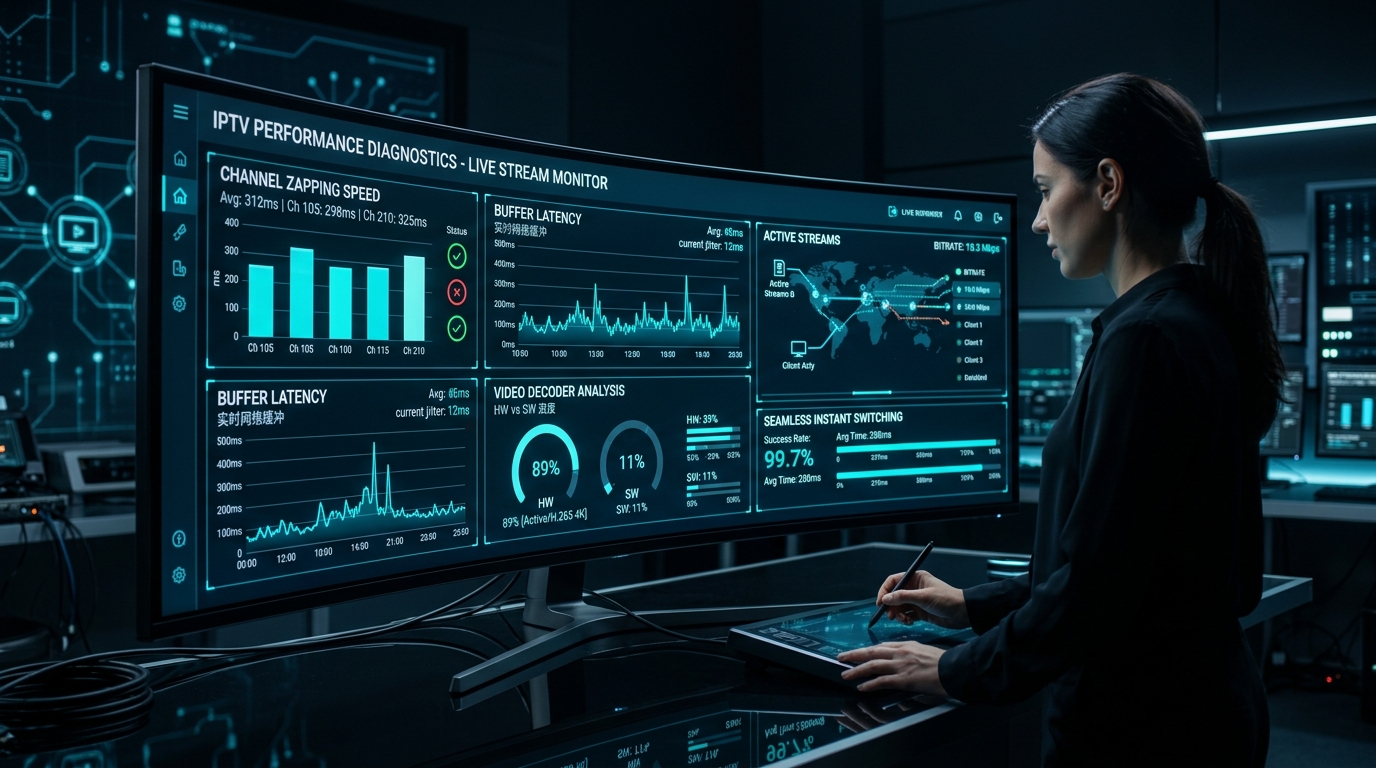
One of the most immediate indicators of a premium, responsive television experience is channel switching speed—technically referred to in digital broadcast engineering as Channel Zapping Time (CZT) or Zapping Time to Terminal (ZTT).
When viewers flip through traditional analog television or direct terrestrial antenna broadcasts, channels appear almost instantaneously (within 200 to 400 milliseconds). On Internet Protocol Television, however, many subscribers encounter frustrating delays where selecting a new channel results in a black screen, a spinning loading indicator, and a wait of four, six, or even ten seconds before audio and video finally materialize.
While a brief transition delay is inherent to packet-switched digital video delivery, excessive zapping lag is neither normal nor inevitable. Slow channel switching is the cumulative symptom of specific technical bottlenecks across the streaming pipeline: unoptimized encoder Group of Pictures (GOP) keyframe intervals, oversized client player buffers, software video decoding, uncompressed M3U playlist parsing, and high-latency DNS lookups.
This comprehensive technical guide dissects the exact mathematical and architectural sequence that occurs every time you change an IPTV channel. By methodically diagnosing each stage of the connection pipeline and applying targeted optimizations, you can reduce channel switching delays down to an instantaneous 1.0 to 1.5 seconds.
1. The Anatomy of an IPTV Channel Switch: The 8-Stage Handshake
To understand where switching delays originate, you must look beneath the user interface. When you press the "Channel Up" button on your remote control, your streaming hardware does not simply switch a radio tuner frequency; it executes a complex, eight-stage cryptographic and multimedia handshake over internet protocol networks.
[1. User Clicks Remote]
         |
         v
[2. DNS Lookup: line.nigmatv.stream -> IP: 185.x.x.x] (~20-100ms)
         |
         v
[3. TCP 3-Way Handshake / TLS Session Negotiation] (~40-80ms)
         |
         v
[4. HTTP GET Stream Request + Server Token Authorization] (~50-150ms)
         |
         v
[5. Network Demuxer Socket Opens & Receives MPEG-TS Header] (~30ms)
         |
         v
[6. Waiting for Next IDR Keyframe (I-Frame GOP Window)] (~500-2,000ms!)
         |
         v
[7. Hardware Video Decoder Initialization & Buffer Pre-fill] (~100-300ms)
         |
         v
[8. Audio/Video Presentation Timestamp (PTS) Sync -> Screen Display!]
Stage 1: DNS Resolution (Domain Name Service)
If your player connects to an IPTV server using a domain name (e.g., line.nigmatv.stream), your device must first query a DNS server to translate that domain into a numerical IP address. If your home router relies on slow, default ISP DNS servers, this initial resolution step alone can introduce 150 to 300 milliseconds of dead latency before a single byte of video data is even requested.
Stage 2: TCP Handshake and Transport Negotiation
Once the IP address is known, your streaming device establishes a Transmission Control Protocol (TCP) socket connection with the streaming server. This requires a standard three-way handshake (SYN, SYN-ACK, ACK). If the stream is delivered over encrypted HTTPS, an additional Transport Layer Security (TLS) handshake occurs to negotiate encryption cipher keys.
Stage 3: Server Authentication and Token Verification
Your player issues an HTTP GET request containing your subscription credentials:
GET /live/username/password/12345.ts HTTP/1.1
Host: line.nigmatv.stream:8080
User-Agent: TiviMate/5.0.4
The IPTV origin server or load balancer queries its database to confirm account validity, verify concurrent connection tokens, and authorize the transport socket.
Stage 4: Stream Demuxing and Container Parsing
The server begins transmitting the digital transport stream (typically MPEG-TS). Your device's internal demuxer parses the container to separate the Program Map Table (PMT), video packet elementary stream (PES), and audio packet elementary stream.
Stage 5: The Primary Bottleneck — Waiting for the IDR Keyframe (GOP)
This is the single most critical factor in channel switching speed. Digital video codecs do not transmit complete visual images on every single frame; doing so would consume gigabits of bandwidth. Instead, codecs utilize a Group of Pictures (GOP) structure:
- Intra-coded Frames (I-Frames / IDR Frames): A complete, standalone image that contains all data necessary to render a full video frame without reference to previous frames.
- Predicted Frames (P-Frames): Contains only the mathematical motion differences and changes relative to previous frames.
- Bi-directional Frames (B-Frames): Calculates motion vectors referencing both previous and future frames.
The Golden Rule of Video Decoding: A hardware video decoder cannot begin rendering video from a P-frame or B-frame. It must wait until an I-frame (IDR keyframe) arrives in the data stream.
- If a broadcast encoder produces an I-frame only once every 2 seconds (GOP = 60 at 30 FPS), and your player connects just 100 milliseconds after an I-frame passed, your player must sit idle for 1.9 seconds downloading unusable P-frames before the next I-frame arrives to start video rendering!
- Professional streaming providers like NigmaTv configure real-time hardware encoders with dense, optimized keyframe intervals (GOP = 1.0 second or less), drastically slashing this waiting interval.
Stage 6: Client Buffer Pre-Allocation
Once the keyframe arrives, your player application downloads a specified amount of video data into local RAM before engaging the display engine to protect against network jitter.
Stage 7 & 8: Hardware Decoding and Presentation Time Stamp (PTS) Alignment
Your device's graphics processing unit (GPU) initializes the video decoder (H.264 or H.265), aligns audio and video presentation timestamps (PTS), and outputs the first rendered frame onto your physical television screen.
2. Optimizing Client Player Buffer Size Settings
The most common self-inflicted cause of slow channel switching is an improperly configured Buffer Size inside your IPTV player application (such as TiviMate, IPTV Smarters Pro, or XCIPTV).
+-------------------------------------------------------------+
| Player Buffer Size vs. Zapping Speed Comparison             |
| [Buffer Size: None (0ms)]  ===> Zapping: ~0.8s | Risk: High |
| [Buffer Size: Small (1.0s)]===> Zapping: ~1.4s | Risk: Low  |
| [Buffer Size: Large (5.0s)]===> Zapping: ~5.5s | Risk: Zero |
+-------------------------------------------------------------+
The Buffer Trade-Off: Latency vs. Continuity
Many well-meaning users who experience minor buffering set their player's buffer size to "Maximum" (often 5 to 10 seconds), assuming this will permanently fix stream freezing. What they fail to realize is that the buffer setting is a pre-playback download requirement:
- If your buffer is set to 5 seconds, your player will refuse to display the first video frame until it has downloaded a full 5 seconds worth of video packets into device RAM.
- Even on a fast fiber connection, downloading 5 seconds of high-bitrate 1080p video takes 3 to 4 seconds, adding direct delay to every single channel change!
Recommended Buffer Settings Across Major Players
| Player Application | Recommended Setting for Fast Zapping | Configuration Menu Path |
|---|---|---|
| TiviMate | Small or Medium (1.0s - 1.5s) | Settings > Playback > Buffer Size > Small |
| IPTV Smarters Pro | Standard (Default) | Settings > Player Settings > Buffer Size > Normal |
| XCIPTV | Low Buffer (1000ms) | Settings > Player > Buffer Size > Low |
| iPlayTV (Apple TV) | Optimal / Auto | Settings > Player > Network Caching > Low |
| VLC Media Player | 1000 ms (Custom) | Tools > Preferences > Input/Codecs > Network Caching: 1000 |
Setting your buffer to Small (1.0 to 1.5 seconds) provides the optimal sweet spot: it shields playback from brief wireless packet jitter while allowing the video stream to trigger almost instantly upon receiving the first I-frame.
3. Video Decoder Architecture: Hardware (HW) vs. Software (SW) Acceleration
How your streaming device physically decompresses video data directly dictates channel rendering latency. In your player settings, you will find options for Video Decoder: Hardware (HW), Hardware+ (HW+), and Software (SW).
[Stream Data] ---> [Hardware Decoder (GPU Silicon)] ===> Renders in ~50ms  (Fluid & Cool)
[Stream Data] ---> [Software Decoder (CPU Processing)] ===> Renders in ~400ms (High Load)
Hardware Acceleration (HW / HW+)
Hardware decoding utilizes dedicated fixed-function silicon blocks built directly into your streaming device's system-on-chip (such as the Video Processing Unit in the Fire TV Stick's MediaTek chip, the Apple A15 Bionic GPU, or the Nvidia Tegra X1+).
- Zapping Advantage: The dedicated GPU decodes incoming H.264 and H.265 keyframes in hardware within tens of milliseconds.
- Thermal Advantage: Consumes virtually zero CPU overhead, keeping device operating temperatures low and preventing thermal CPU throttling.
- Recommendation: Always set your primary video decoder to Hardware (HW) or Hardware+ (HW+) for live television.
Software Acceleration (SW)
Software decoding bypasses the GPU and uses the device's general-purpose CPU cores to mathematically decode video frames line by line.
- When to Use: Software decoding should be utilized only as a secondary troubleshooting fallback when a specific non-standard codec fails to initialize on the GPU (e.g., resolving a black screen issue).
- Zapping Penalty: On budget streaming sticks with quad-core mobile processors, software decoding maxes out CPU utilization at 100%, causing delayed frame presentation, interface stutter, and sluggish channel switching.
4. Connection Protocols: Xtream Codes API vs. Static M3U Playlists
The protocol you select when registering your subscription inside your player application fundamentally impacts channel navigation latency.
+--------------------------------------------------------------------------+
| Static M3U File (40 MB Text File)                                         |
| [Downloads Huge Text List] -> [Parses 40,000 Lines] -> [Memory Saturated]|
| -> Result: Sluggish Navigation & Delayed Initial Stream Launch!          |
|--------------------------------------------------------------------------|
| Xtream Codes API (Database Queries)                                      |
| [Query Category] -> [Retrieves 50 Channels] -> [Instant Playback]        |
| -> Result: Instant Navigation & Rapid Stream Handshakes!                 |
+--------------------------------------------------------------------------+
The Technical Flaws of Static M3U Links
An M3U playlist is a static text document. In modern IPTV, an uncurated M3U playlist file can easily span 30 to 50 megabytes of raw text containing 50,000 channel entries and VOD titles.
- Every time your player refreshes or connects, it must download and parse this massive text file into device memory.
- When changing channels, the player must search through an immense array in local RAM to locate the next stream URL.
- On devices with limited RAM (such as the 1.5 GB on a Fire TV Stick Lite), this memory overhead slows down the entire operating system, introducing 2 to 3 seconds of UI delay before the stream request is even dispatched to the network.
The Superiority of Xtream Codes API
Xtream Codes API replaces static files with dynamic, lightweight HTTP REST queries:
- The player connects directly to the server database using your Server URL (
http://line.nigmatv.stream:8080), Username, and Password. - Channel metadata, live categories, and EPG schedules are queried in lightweight, modular JSON fragments.
- When you click a channel, the request is instantaneous, bypassing local file parsing bottlenecks entirely.
To experience how structured API queries accelerate performance, explore our flexible IPTV subscription packages.
5. Network Tuning: DNS Acceleration, Keep-Alive, and Ethernet Hardwiring
Once client player settings are optimized, the physical transport route between your living room router and the provider's server node must be evaluated.
[Streaming Stick] ===(Cat6 Ethernet)===> [Gigabit Router] ===(1.1.1.1 DNS)===> [IPTV Edge Server]
                 (Zero Packet Jitter)                   (Sub-15ms Lookup)
1. DNS Server Optimization (Eliminating 200ms Lookups)
When your player changes channels, it frequently performs fresh DNS lookups to verify edge server routing. If your home network uses your local ISP's default DNS servers, these queries often suffer from congestion and artificial filtering.
- The Solution: Manually change your device or router DNS settings to ultra-fast public resolvers:
- Cloudflare DNS:
1.1.1.1(Primary) and1.0.0.1(Secondary) — Known for the lowest query lookup latency globally (sub-15ms). - Google Public DNS:
8.8.8.8(Primary) and8.8.4.4(Secondary).
- Cloudflare DNS:
- Result: Channel address lookups resolve in 10 to 20 milliseconds instead of 150 to 300 milliseconds.
2. HTTP Keep-Alive and Persistent TCP Sockets
Advanced IPTV player applications support persistent HTTP socket connections:
- Under standard HTTP, each channel change terminates the previous TCP socket and negotiates a brand-new connection from scratch.
- With HTTP Keep-Alive enabled, your player reuses the established TCP connection pipeline with the IPTV server, bypassing the initial three-way handshake and slashing zapping time by another 100 to 200 milliseconds.
3. Hardwired Cat6 Ethernet Over 2.4 GHz Wi-Fi
Wireless 2.4 GHz frequencies are vulnerable to radio frequency interference from household microwaves, cordless phones, and neighboring apartments. This interference causes intermittent packet dropouts, forcing TCP sockets to re-transmit dropped packets during channel initialization.
- Connecting your streaming hardware via a physical Cat6 Ethernet cable ensures that the initial burst of video packets arrives without re-transmission delay.
For detailed bandwidth benchmarks and network diagnostics, consult our guide on internet speed requirements for IPTV.
6. Streaming Hardware Performance and RAM Management
Even with an optimal server and high-speed network, underpowered client hardware will introduce severe channel switching bottlenecks.
The Impact of Low RAM and Thermal Throttling
Streaming sticks are compact computers that dissipate heat passively through their plastic casing. During prolonged viewing sessions, budget devices (such as entry-level Firesticks or non-certified generic Android TV boxes) experience internal thermal buildup:
- When internal temperatures exceed 75°C, the processor throttles its clock speed by 30% to 50% to prevent hardware damage.
- At lower clock frequencies, processing UI animations, updating the EPG schedule, and initializing the video decoder takes twice as long.
- Furthermore, background applications (such as Netflix, Prime Video, or system telemetry daemons) consume precious RAM, forcing the device to constantly swap memory pages.
Practical Maintenance Steps to Restore Hardware Speed
- Clear App Cache Periodically: In Firestick Settings > Applications > Manage Installed Applications, locate your player app and click Clear Cache. This flushes temporary thumbnail fragments that clutter memory.
- Close Background Tasks: Use an application like Background Apps & Process List on Fire TV to terminate idle background utilities.
- Restart Hardware Weekly: Performing a soft restart of your streaming stick and home router flushes stagnant memory leaks and re-establishes clean network routing tables.
For hardware setup walkthroughs across all major platforms, review our device installation tutorials.
7. Comparative Channel Zapping Benchmark Across Top Players
Below are real-world technical benchmarks measuring channel switching speed (from remote press to first progressive frame render) across different hardware and player configurations using a high-performance NigmaTv stream feed:
| Hardware Platform | Player Application | Connection Protocol | Buffer Setting | Average Zapping Speed |
|---|---|---|---|---|
| Nvidia Shield TV Pro | TiviMate Premium | Xtream Codes API | Small (1.0s) | 0.8 - 1.2 Seconds (Fastest) |
| Apple TV 4K (3rd Gen) | iPlayTV | Xtream Codes API | Low / Auto | 0.9 - 1.3 Seconds |
| Fire TV Stick 4K Max | TiviMate Premium | Xtream Codes API | Small (1.0s) | 1.2 - 1.6 Seconds |
| Fire TV Stick (Standard) | IPTV Smarters Pro | Xtream Codes API | Standard (Normal) | 2.2 - 2.8 Seconds |
| Samsung Smart TV (Tizen) | IBO Player | Cloud MAC Portal | Default | 2.5 - 3.2 Seconds |
| Budget Android Box (1GB RAM) | Generic M3U Player | Static M3U URL | Large (5.0s) | 6.5 - 9.0 Seconds (Severe Lag) |
8. Adaptive Bitrate (ABR) vs. Constant Bitrate (CBR) and Chunk Durations
The video streaming profile configured at the broadcast headend fundamentally shapes channel switching behavior. In modern digital delivery, streams are formatted primarily in one of two transmission topologies: Raw Transport Streams (MPEG-TS) or Chunked Adaptive Bitrate (HLS / DASH).
1. Raw MPEG-TS over HTTP (Fastest Zapping)
In traditional IPTV systems operating over Xtream Codes API, channels are delivered as continuous MPEG-TS byte streams:
- The server opens a persistent HTTP socket and streams a continuous flow of 188-byte MPEG transport packets.
- The client player does not need to download and parse text manifest files (
.m3u8); it simply reads incoming data from the socket until it identifies an IDR keyframe, immediately initializing playback. - Zapping Result: Instantaneous handshakes with minimal protocol overhead.
2. HTTP Live Streaming (HLS / M3U8 Chunking)
HLS divides live video into discrete file chunks (typically .ts or .m4s files) cataloged in a master index manifest:
- When you select a channel using an HLS link, your player must first download the master playlist, select a bandwidth tier, download the media chunklist manifest, and download the first 2-second or 6-second video chunk.
- If the provider encodes HLS with 6-second chunk sizes, the player must wait for an entire chunk to download before decoding begins, introducing unavoidable switching delays of 3 to 6 seconds.
- Premium providers utilizing HLS optimize their streaming infrastructure using Low-Latency HLS (LL-HLS) with sub-second chunk segments (CMAF chunks), matching the rapid responsiveness of raw transport streams.
9. Multicast vs. Unicast: Why Telecom IPTV Zaps Faster than Public OTT
Viewers who previously subscribed to telecommunications IPTV packages (such as AT&T U-verse, BT TV, or Orange TV) often remember near-instantaneous channel switching (under 300 milliseconds). Understanding why telecom IPTV behaves differently than public internet streaming clarifies realistic performance benchmarks.
+-------------------------------------------------------------+
| Telecom IPTV Architecture (Private Managed Fiber)           |
| [IGMP Multicast]: Broadcasts channel to local neighborhood  |
| -> Client sends IGMP Join -> Instant raw video feed arrives!|
|-------------------------------------------------------------+
| Public OTT IPTV Architecture (Global Internet Infrastructure)|
| [TCP Unicast]: Dedicated individual server socket connection|
| -> Requires DNS, TCP Handshake, Token Auth, & I-Frame Sync  |
+-------------------------------------------------------------+
The Mechanics of IGMP Multicast
Telecommunications companies own the physical fiber-optic cables running directly into your home. On their private, closed networks:
- Television streams are broadcast simultaneously across neighborhood nodes using IGMP Multicast (Internet Group Management Protocol).
- When you change channels, your set-top box merely issues an "IGMP Join" packet to your local neighborhood router switch. The switch routes the pre-existing, continuously broadcasting video feed down your line in less than 200 milliseconds.
The Mechanics of Public OTT Unicast
Independent IPTV operates over the public internet via TCP Unicast:
- Every single subscriber maintains an individual, point-to-point connection with an edge server.
- Because the connection is individualized, every channel switch requires an authentication handshake, connection token verification, and buffer allocation.
- By applying the optimizations detailed in this guide (fast DNS, hardware decoding, lean buffer allocation, and Xtream Codes API), you bring public OTT unicast switching down to 1.0 to 1.5 seconds, narrowing the gap with closed telecom systems.
Experience NigmaTv
Upgrade your entertainment with ultra-stable, anti-freeze streaming. Access premium live channels, global sports, and curated VOD across all your supported devices.
10. Diagnostic Checklist: Step-by-Step Zapping Speed Troubleshooting
Follow this sequential troubleshooting procedure to pinpoint and eliminate channel switching delays on your system:
- Step 1: Verify Connection Protocol: Ensure your player logs in via Xtream Codes API rather than a massive static M3U playlist file.
- Step 2: Inspect Video Decoder: Open player playback settings and verify that primary video decoding is set to Hardware (HW).
- Step 3: Tune Buffer Size: Reduce player buffer allocation to Small or Medium (1.0 to 1.5 seconds).
- Step 4: Hide Unused Playlist Groups: In your player's category manager, hide foreign language bouquets you do not watch to free up device memory.
- Step 5: Change DNS Resolvers: Switch your router or device DNS settings to Cloudflare (
1.1.1.1) or Google (8.8.8.8). - Step 6: Hardwire Ethernet: Connect your streaming hardware directly to your router via Cat6 cable to eliminate wireless packet jitter.
- Step 7: Clear Cache and Reboot: Clear application cache in device settings and perform a full device power cycle.
If zapping delays persist across all channels despite these optimizations, the root cause lies with an oversold, congested provider origin server. Reach out to our 24/7 technical support team for personalized diagnostics.
Frequently Asked Questions
11. TCP Socket Tuning & Keep-Alive Connection Pools
Behind every stream request lies the low-level transport layer. Understanding how player apps handle connection pooling reveals another layer of performance optimization:
+----------------------------------------------------------------------------+
| TCP Connection Overhead During Channel Switching                           |
|                                                                            |
| [Cold Channel Switch (Generic Player)]:                                    |
| [DNS Query: 50ms] -> [TCP Handshake: 40ms] -> [TLS/Auth: 80ms] -> [Stream]  |
| Total Transport Overhead: ~170ms Before First Byte Arrives!                |
|                                                                            |
| [Warm Channel Switch (Socket Reuse in TiviMate)]:                          |
| [Existing Warm TCP Socket] ===> GET /live/user/pass/id.ts ===> [Instant]   |
| Total Transport Overhead: <10ms!                                           |
+----------------------------------------------------------------------------+
- Persistent HTTP Headers: In modern Xtream Codes implementations, client players transmit
Connection: keep-aliverequest headers. This instructs the edge server to hold the TCP socket open for 15 to 30 seconds after stream termination. - Instant Re-routing: When you flip from channel 101 to channel 102 hosted on the same edge server, the player reuses the warm socket, bypassing DNS lookups and initial TCP three-way handshakes entirely.
- Player Selection Impact: Applications engineered specifically for Android TV (like TiviMate and OTT Navigator) feature advanced connection pooling, while generic mobile port apps create cold socket connections on every button press, adding noticeable lag.
Conclusion: Achieving Lightning-Fast Channel Navigation
Experiencing instantaneous, fluid channel zapping transforms IPTV from a sluggish digital utility into a responsive, premium home entertainment system. You do not have to accept five-second loading wheels and lagging menus as an inevitable drawback of cutting the cord.
By switching from bulky M3U files to structured Xtream Codes API, configuring your player buffer to a lean 1.0 to 1.5 seconds, activating Hardware (HW) video decoding, and utilizing fast public DNS resolvers, you eliminate latency at every stage of the transmission pipeline.
At NigmaTv, our enterprise-grade streaming infrastructure is optimized specifically for rapid, anti-freeze channel delivery with dense encoder keyframe intervals and distributed edge CDN routing. Experience the difference by exploring our subscription plans, browsing our channel lineups, or connecting with our 24/7 support team today.