How to Watch IPTV on Apple TV 4K: Complete tvOS Setup, App Comparison & Optimization Guide
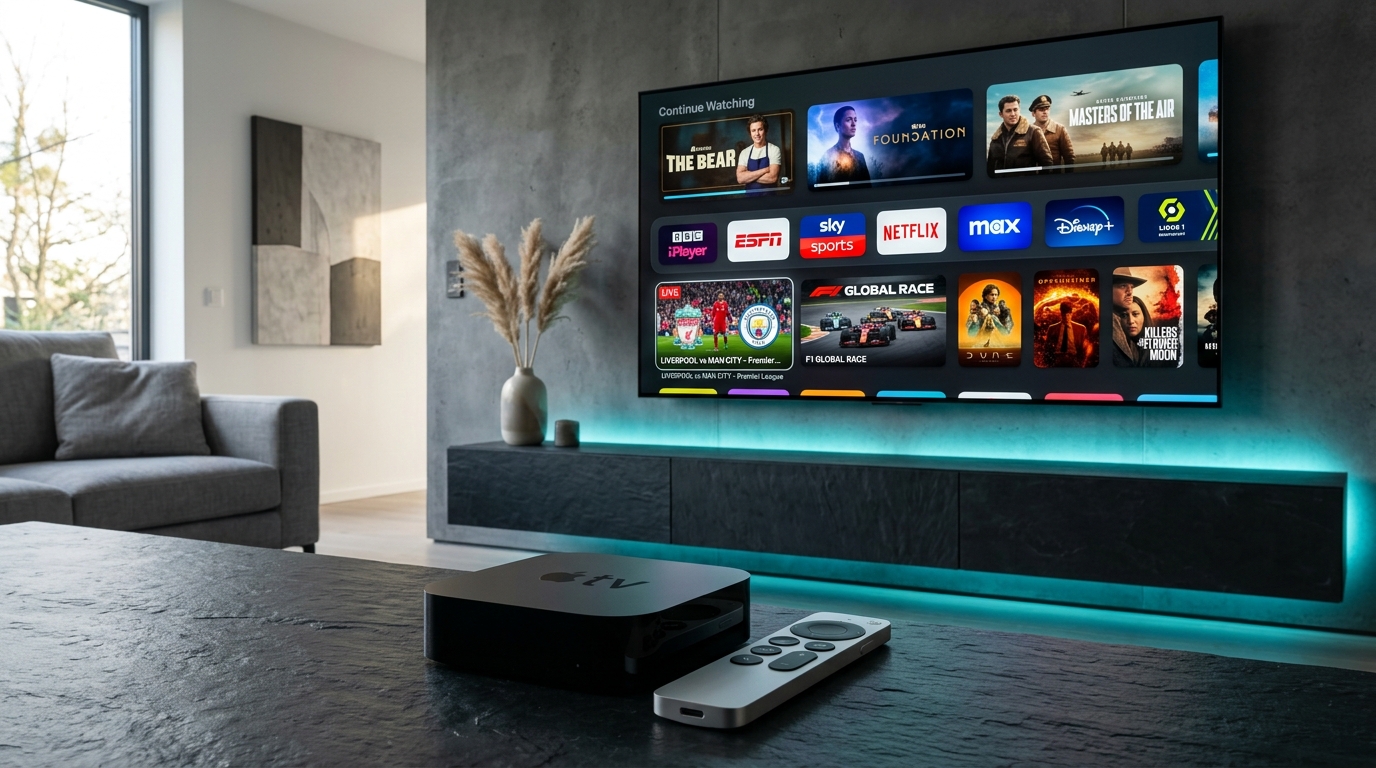
Among the vast array of consumer streaming hardware available on the market today, the Apple TV 4K stands in a category of its own. While budget streaming dongles frequently compromise on memory, thermal management, and graphics processing to achieve low price points, Apple engineered the Apple TV 4K as a high-performance multimedia computer disguised as a living room entertainment box.
Powered by desktop-grade Apple Silicon (such as the A12 Bionic and A15 Bionic chipsets), Apple TV 4K offers unmatched raw computing power, strict color accuracy, dedicated hardware video decoders, and a silky-smooth 60 FPS user interface rendered natively via Apple's low-level Metal graphics API. For discerning television viewers, pairing an Apple TV 4K with a high-speed, anti-freeze IPTV subscription unlocks an experience that not only matches, but frequently surpasses, high-end traditional cable and satellite set-top boxes.
However, because Apple maintains a strictly sandboxed operating system environment in tvOS, configuring IPTV on Apple TV differs fundamentally from sideloading APK files on an Amazon Firestick or Android TV. There is no sideloading via third-party web browsers; every application must be vetted and installed directly from the official Apple App Store.
This comprehensive technical guide details the entire ecosystem of IPTV on Apple TV 4K. We evaluate the finest tvOS player applications, provide step-by-step configuration walkthroughs using modern Xtream Codes API credentials, and guide you through critical tvOS display calibration (such as Match Frame Rate and Match Dynamic Range) to achieve broadcast-grade television in your home.
1. Why Apple TV 4K is the Ultimate IPTV Streaming Terminal
To appreciate why Apple TV 4K delivers such a superior streaming experience, one must examine the underlying hardware silicon and display architecture that separates it from budget alternatives.
+-------------------------------------------------------------------------+
| Hardware Architecture Comparison                                        |
| Budget Firestick / Android Stick: Quad-Core Mobile CPU, 1.5 GB RAM, Mali |
| -> Result: Occasional frame drops, thermal throttling after 2 hours     |
|-------------------------------------------------------------------------|
| Apple TV 4K (3rd Gen): A15 Bionic 6-Core CPU, 4 GB LPDDR4X RAM, Metal GPU|
| -> Result: Instant 60 FPS rendering, zero thermal throttling, 4K HDR    |
+-------------------------------------------------------------------------+
1. Raw Processing Power and Memory Bandwidth
Budget streaming sticks operate with 1.5 GB to 2 GB of low-bandwidth system RAM shared between the Android operating system and video buffers. When parsing extensive channel lineups containing 20,000+ entries, these devices often stutter or run out of memory.
- The Apple TV 4K features 4 GB of high-speed unified RAM and desktop-class CPU cores.
- It can ingest, index, and cache massive electronic program guide (EPG) databases in seconds without causing interface lag.
2. Apple Metal Graphics API and 60 FPS UI Rendering
In tvOS, user interfaces are rendered using Apple's proprietary Metal graphics framework:
- Every channel guide scroll, poster animation, and menu transition occurs at a locked 60 Frames Per Second.
- Scrolling through hundreds of channels in apps like iPlayTV or UHF Player feels as instantaneous and responsive as scrolling through photos on an iPhone.
3. Precision Color Management and Dynamic Range Processing
Many streaming devices force all output signals into a single static display profile (such as forced HDR10 or Dolby Vision), resulting in artificial oversaturation or washed-out contrast when viewing standard dynamic range (SDR) live television.
- Apple TV 4K features native system-level Match Dynamic Range and Match Frame Rate capabilities.
- Standard SDR broadcasts output pure, accurate Rec. 709 color, while 4K HDR sports feeds automatically trigger HDR10 or Dolby Vision tone mapping on your television display.
2. In-Depth Review of Top tvOS IPTV Player Applications
Because you cannot sideload APK files onto tvOS, selecting a top-tier application from the official Apple App Store is paramount. Below is an objective technical review of the leading IPTV applications available for Apple TV 4K.
                                  [Apple App Store for tvOS]
                                              |
         +--------------------+---------------+--------------------+
         |                    |               |                    |
         v                    v               v                    v
    [iPlayTV]          [IPTV Smarters]   [UHF Player]         [GSE Smart IPTV]
   (Gold Standard)     (Universal Free) (iCloud Modern)      (Advanced Codecs)
1. iPlayTV (The Gold Standard for tvOS)
Widely regarded as the finest IPTV player ever developed for Apple TV, iPlayTV is a paid application engineered exclusively for tvOS:
- Interface Excellence: Features a gorgeous, dark-mode EPG grid with smooth horizontal timeline scrolling, automatic network logo scraping, and multi-hour guide previews.
- Multi-Playlist Architecture: Allows simultaneous storage of multiple provider accounts with independent EPG scheduling.
- Siri Remote Optimization: Fully leverages the Apple TV Siri Remote touch clickpad for rapid scrolling, quick channel switching, and instant audio track selection.
- Verdict: For users seeking a permanent, cable-grade living room interface, iPlayTV is the undisputed champion on tvOS.
2. IPTV Smarters Pro (tvOS Edition)
The official tvOS port of the popular cross-platform client:
- Familiar Portal Layout: Retains the familiar four-box dashboard separating Live TV, Movies, Series, and Catch-Up.
- Zero Cost Barrier: Available as a free download on the App Store, making it an excellent starting point for new users.
- Limitations: The interface does not feel quite as native to Apple's design language as iPlayTV, and EPG scrolling is somewhat more segmented.
3. UHF Player (Modern Design with iCloud Sync)
A newer, highly acclaimed contender in the Apple ecosystem:
- Cross-Device iCloud Sync: Adding your NigmaTv subscription to UHF Player on your Apple TV automatically synchronizes your playlist, favorites, and watch history across your iPhone, iPad, and Mac via your Apple ID.
- Picture-in-Picture (PiP) Support: Takes full advantage of native tvOS Picture-in-Picture, allowing you to monitor a live sports broadcast in the corner of your screen while navigating other apps.
- Modern SwiftUI Interface: Clean, minimalist typography that conforms strictly to Apple's Human Interface Guidelines.
4. GSE Smart IPTV
A veteran player application with a long history on iOS and tvOS:
- Technical Strengths: Exceptional support for non-standard transport stream codecs, embedded subtitles, and manual HTTP connection headers.
- Interface Weaknesses: The user interface feels dated and complex compared to modern rivals like iPlayTV or UHF.
3. Step-by-Step Setup Walkthrough: Connecting Apple TV to NigmaTv
Connecting your Apple TV 4K to your active subscription using the industry-standard Xtream Codes API takes fewer than three minutes.
+-------------------------------------------------------------+
| Connection Parameters Required                              |
| Account Name : NigmaTv                                      |
| Server URL   : http://line.nigmatv.stream:8080             |
| Username     : [Your Assigned Account Username]             |
| Password     : [Your Assigned Account Password]             |
+-------------------------------------------------------------+
Step 1: Install Your Chosen Player App
- Power on your Apple TV 4K and open the App Store from your home screen.
- Navigate to the Search tab (magnifying glass icon).
- Search for your chosen application (e.g., iPlayTV, IPTV Smarters Pro, or UHF Player).
- Click Get or purchase the app to install it onto your Apple TV.
Step 2: Input Your Xtream Codes Credentials
- Launch the newly installed player app.
- On the initial welcome screen, select "Add Playlist" or "Add Account".
- Choose "Xtream Codes API" (recommended over M3U URL for faster EPG loading and organized VOD categories).
- Enter your connection parameters:
- Playlist Name: Enter a recognizable title, such as
NigmaTv. - Server URL: Input the server address exactly as provided in your activation email (e.g.,
http://line.nigmatv.stream:8080). Ensure no extra spaces or trailing slashes are added. - Username: Enter your unique account username.
- Password: Enter your unique account password.
- Playlist Name: Enter a recognizable title, such as
- Select Save, Connect, or Login.
Step 3: Synchronize Channels and EPG Guide
- The application will connect to the server database, verify your account token, and begin downloading channel manifests.
- Allow 30 to 60 seconds for the initial sync to populate the live channels, movie catalogs, and electronic program guide data.
- Once completed, your channel lineups will appear organized by country, genre, and resolution tags.
For configuration advice across other household hardware, consult our comprehensive device installation tutorials.
4. Crucial tvOS Display Calibration: Match Frame Rate and Dynamic Range
This is the single most important technical step for Apple TV 4K owners. By default, Apple TV forces all video output to a static resolution and refresh rate (typically 4K 60Hz HDR or Dolby Vision). When streaming live television, this default behavior introduces two severe visual flaws:
- Motion Judder: Caused by playing 50 FPS European broadcasts or 24 FPS movies on a locked 60 Hz display output.
- Color Inaccuracy: Caused by forcing standard dynamic range (SDR) live sports into an artificial HDR color container.
[Apple TV Default: Locked 4K 60Hz HDR] ===> Stutter on 50 FPS Feeds & Washed Out Colors
[Calibrated Setting: 4K SDR + Match Content ON] ===> Perfect Color & Fluid Motion!
The Recommended Calibration Procedure
Follow these exact steps in your Apple TV system settings to ensure pristine broadcast reproduction:
Step 1: Set Base Video Format to 4K SDR
- Open Apple TV Settings > Video and Audio.
- Select Format and choose 4K SDR (Standard Dynamic Range) with 50Hz or 60Hz.
- Why this matters: The tvOS home screen and the vast majority of live television channels broadcast in SDR. Setting your base format to 4K SDR ensures your TV's natural color space (Rec. 709) is preserved without artificial contrast boosting.
Step 2: Activate Match Content (Frame Rate & Dynamic Range)
- In the same Video and Audio menu, select Match Content.
- Toggle Match Dynamic Range to ON.
- Result: When you tune into a genuine 4K HDR stream, Apple TV automatically switches your television display into HDR10 or Dolby Vision mode. When you return to standard HD channels, it instantly switches back to SDR.
- Toggle Match Frame Rate to ON.
- Result: When you watch a 50 FPS European football match, Apple TV dynamically switches the HDMI clock output to 50 Hz. When you switch to a 60 FPS NBA basketball game, it shifts to 60 Hz. Screen judder and dropped frames are completely eliminated!
5. Audio Configuration: Bitstream Passthrough vs. Uncompressed LPCM
Audio delivery on Apple TV 4K operates differently than on standard Android streaming sticks. Understanding Apple's audio architecture ensures you achieve full surround sound fidelity on home cinema systems.
[IPTV Stream: Dolby Digital AC-3 5.1]
                    |
                    v
    [Apple TV CoreAudio Processing Engine]
(Decodes internally into uncompressed multichannel audio)
                    |
                    v
[HDMI Output: Uncompressed Linear PCM (LPCM 5.1)]
                    |
                    v
[AV Receiver / Soundbar: Pristine Lossless Surround Sound Output!]
How Apple TV Handles Audio Output
Unlike Android TV devices that pass raw compressed bitstreams directly to your receiver, Apple TV 4K utilizes its high-performance CoreAudio engine:
- Apple TV internally decodes incoming compressed audio streams (such as Dolby Digital AC-3 or Dolby Digital Plus E-AC-3) into Uncompressed Multi-Channel Linear PCM (LPCM) before transmitting it over HDMI.
- Audio Quality: LPCM carries the exact same mathematical audio data without loss or degradation. Your AV receiver will display "PCM" or "Multi-Ch In" on its front panel, but all 5.1 discrete speaker channels are fully preserved.
Recommended Audio Settings in tvOS
- Go to Settings > Video and Audio > Audio Format.
- Ensure Change Format is set to OFF (Auto).
- If connecting to an older soundbar that does not accept multi-channel LPCM, change Audio Format to Dolby Digital 5.1.
6. Quick Media Switching (QMS) and HDMI 2.1: Eliminating the Black Screen Handshake
One of the most persistent minor annoyances when enabling Match Content Frame Rate on digital streaming devices is the momentary black screen (known as an HDMI clock re-sync or "HDMI bonk") that occurs when switching between a 50 Hz European broadcast and a 60 Hz North American sports stream.
+--------------------------------------------------------------------------+
| Traditional HDMI Clock Re-Sync (HDMI 2.0 / Early HDMI 2.1)               |
| [Stream Frequency Changes from 60 Hz to 50 Hz]                           |
| -> Television screen goes completely black for 1.5 to 2.5 seconds        |
| -> Audio pauses while HDMI handshake negotiates new refresh clock        |
|--------------------------------------------------------------------------|
| Next-Gen Quick Media Switching (QMS) on Apple TV 4K (3rd Gen)            |
| [Stream Frequency Changes from 60 Hz to 50 Hz]                           |
| -> HDMI 2.1 QMS Variable Refresh Rate (VRR) adjusts frequency seamlessly |
| -> ZERO black screen! Instantaneous visual transition!                   |
+--------------------------------------------------------------------------+
How QMS Operates on Apple TV 4K
With the release of the 3rd-generation Apple TV 4K (Wi-Fi + Ethernet edition), Apple introduced full hardware support for HDMI 2.1 QMS (Quick Media Switching):
- QMS utilizes underlying Variable Refresh Rate (VRR) signaling to instantly adapt the television's refresh rate without tearing down and rebuilding the entire HDMI video transport pipeline.
- When paired with a modern television display supporting HDMI 2.1 QMS (such as LG OLED G3, C3, G4, or newer Samsung and Sony flagship displays), you can leave Match Frame Rate: ON permanently.
- As you zap between 50 FPS UK football feeds and 60 FPS American NBA feeds, the refresh rate transitions instantly with zero black screen interruption.
Wireless HomePod Stereo Pairs with Live IPTV Audio
Many Apple TV owners utilize dual full-size HomePods or HomePod minis configured as a wireless stereo pair:
- Apple TV utilizes an ultra-low-latency ad-hoc Wi-Fi direct connection (operating over AirPlay 2) to transmit uncompressed audio to HomePod stereo pairs.
- Because live IPTV streams can suffer from lip-sync drift if the network experiences packet jitter, Apple TV incorporates automated Wireless Audio Sync:
- In Apple TV settings under Video and Audio > Wireless Audio Sync, you can calibrate your television display using your iPhone's camera and microphone.
- The iPhone listens to a series of calibration tones emitted from your TV screen, calculating the exact millisecond delay between screen pixel illumination and speaker output, locking audio and video into perfect synchronization.
7. Deep Dive: tvOS Storage Sandboxing, Core Data Cache & EPG Lifecycles
Understanding the software architecture of Apple's tvOS operating system reveals why applications behave differently than their Android counterparts, particularly when storing massive Electronic Program Guide (EPG) schedules.
The Strict tvOS Application Sandbox
Unlike Android, which allows applications to write files freely across external USB storage, SD cards, and shared device directories, tvOS enforces a strict, compartmentalized security sandbox:
- Every application is allocated an isolated storage directory.
- An application installed on Apple TV has access only to a small permanent storage partition (often limited to under 500 KB for user preferences like your login credentials stored in
NSUserDefaults). - All active media files, channel manifests, and multi-day EPG databases must be stored inside the temporary
Cachesdirectory (Library/Caches).
The System Purge Daemon and EPG Data Protection
Because tvOS manages device flash memory aggressively, the operating system runs an automated background purge daemon:
- If your Apple TV begins running low on local flash storage (for example, after downloading multiple high-fidelity Apple Arcade games or large 4K aerial screensavers), the tvOS system daemon will automatically purge application cache folders.
- If this occurs, the next time you launch your IPTV player, your TV guide may temporarily appear empty while the application initiates a fresh background download from the server.
- Best Practice: Keep at least 5 to 10 GB of free storage on your Apple TV 4K by deleting unused arcade games. This ensures your player app's local SQLite database of EPG schedules remains permanently cached in flash memory.
8. Siri Remote Mastery: Gestures and Shortcuts for IPTV
The modern Apple TV Siri Remote (aluminum edition with touch clickpad) includes subtle navigation features that enhance live television channel surfing:
- Touch Surface Channel Scrubbing: In iPlayTV and UHF Player, gently swiping your thumb across the circular clickpad allows rapid smooth scrubbing through hundreds of channels without repeatedly clicking buttons.
- Quick Channel Zapping: Pressing the Left or Right edge of the clickpad switches directly between your most recently viewed channels (instant recall).
- On-Screen Multi-Info Overlay: Swiping Down during live video brings up the stream metadata panel, displaying real-time video resolution (1080p/4K), codec (H.264/HEVC), audio track selection, and EPG program summaries.
- Picture-in-Picture Trigger: Pressing the TV/Control Center button on your remote allows you to minimize live streams into a floating window while browsing other categories.
7. Network Architecture: Gigabit Ethernet vs. Wi-Fi 6 on Apple TV 4K
To ensure zero buffering during high-bitrate live 4K broadcasts, physical network connectivity must be prioritized.
+-------------------------------------------------------------+
| Apple TV 4K Network Interface Comparison                    |
| [Gigabit Ethernet Port (RJ45)]: 1,000 Mbps Full Duplex      |
| -> Zero wireless packet loss, sub-5ms local gateway ping    |
|-------------------------------------------------------------|
| [Wi-Fi 6 (802.11ax MIMO)]: Up to 800 Mbps Wireless         |
| -> Vulnerable to household radio interference & wall loss   |
+-------------------------------------------------------------+
Why Ethernet Remains the Gold Standard
While Apple TV 4K features exceptional Wi-Fi 6 antennas, live television streaming demands consistent packet arrival times (low jitter) rather than intermittent burst speeds:
- Connecting your Apple TV directly to your home router using a Cat6 Ethernet cable guarantees that incoming stream packets are never dropped by household microwave interference or neighboring wireless congestion.
- If your Apple TV must operate on Wi-Fi, ensure it connects exclusively to the 5 GHz frequency band of your router, positioned within direct line-of-sight if possible.
For comprehensive network diagnostics and speed recommendations, explore our guide on internet speed requirements for IPTV.
Experience NigmaTv
Upgrade your entertainment with ultra-stable, anti-freeze streaming. Access premium live channels, global sports, and curated VOD across all your supported devices.
8. Technical Troubleshooting: Solving Common Apple TV IPTV Issues
If you encounter unexpected behavior on Apple TV 4K, use this diagnostic matrix to resolve issues swiftly:
1. Black Screen During Channel Switching (1-Second HDMI Blinking)
- Cause: This is normal behavior when Match Frame Rate or Match Dynamic Range is enabled. Your television must momentarily re-lock its HDMI clock when switching between a 50 Hz European channel and a 60 Hz North American channel.
- Fix: If the brief black blink bothers you, you can disable Match Frame Rate in Apple TV settings, though this may re-introduce slight motion judder on European feeds.
2. Electronic Program Guide (EPG) Fails to Update
- Cause: tvOS app sandbox caching timeout or corrupted local SQLite database.
- Fix: Inside your player app (e.g., iPlayTV), go to Settings > EPG > Clear EPG Cache, then select Reload EPG. If the issue persists, force-close the application (double-click the TV button on your remote, swipe up on the app card, and re-launch).
3. Audio Plays Perfectly but Video is Missing (Black Screen)
- Cause: Video decoder initialization failure on non-standard HEVC profiles.
- Fix: Switch the internal playback engine in your app settings from AVPlayer to VLC (if supported), or check our technical troubleshooting guide on fixing IPTV black screen with working audio.
4. App Fails to Restore In-App Purchases
- Cause: Apple ID authentication mismatch.
- Fix: Ensure you are logged into the exact same Apple ID used to purchase the player license. Go to the app's settings and click Restore Purchases.
If you require personalized setup assistance, reach out directly to our 24/7 customer support desk.
Frequently Asked Questions
Conclusion: Unleashing the True Power of Apple TV 4K Streaming
The Apple TV 4K represents the gold standard in modern living room entertainment hardware. When liberated from the restrictive confines of traditional cable contracts and paired with a high-capacity, anti-freeze IPTV service, it transforms into an unmatched television powerhouse.
By installing a refined, Metal-accelerated player like iPlayTV or UHF Player, calibrating tvOS to 4K SDR with Match Content enabled, and connecting via Cat6 Gigabit Ethernet, you achieve a television experience characterized by instantaneous channel navigation, fluid 60 FPS motion, and pristine color fidelity.
Discover how enterprise-grade server infrastructure complements Apple's flagship hardware. Explore our NigmaTv subscription plans, browse our extensive live channel directory, or reach out to our dedicated 24/7 support team to begin enjoying premium television on your Apple TV today.