How to Watch IPTV on Amazon Firestick: Complete Installation, Sideloading & Performance Tuning Guide
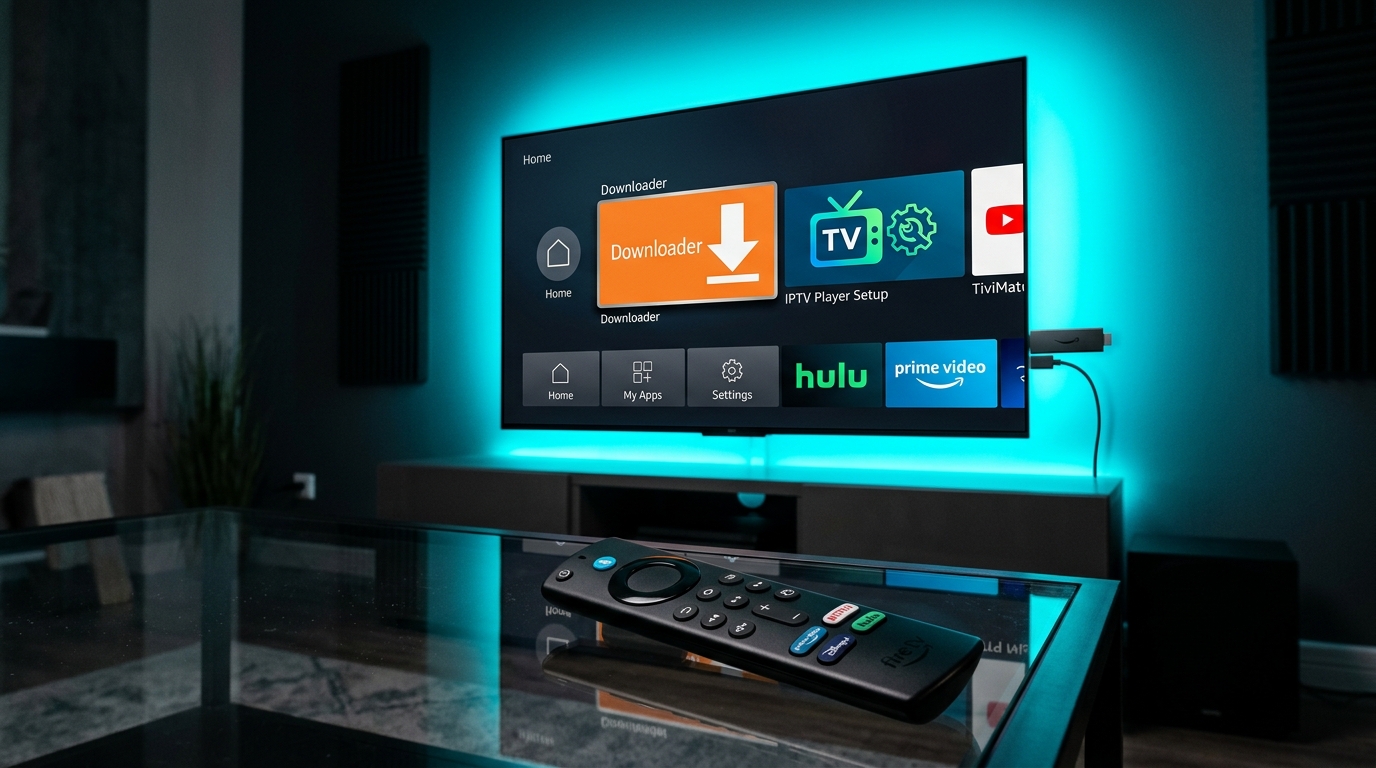
The Amazon Fire TV Stick (encompassing the Fire TV Stick Lite, Firestick 4K, Fire TV Stick 4K Max, and Fire TV Cube) is undisputed as the most widely deployed streaming terminal in the global cord-cutting movement. Combining pocket-sized portability, an intuitive physical voice remote, robust hardware video decoders, and an accessible price point, Amazon's streaming hardware provides an exceptional platform for experiencing live television over internet protocol networks.
However, because the Amazon Appstore does not natively host independent IPTV player applications due to corporate ecosystem policies, getting started with IPTV on a Firestick requires a brief, one-time configuration process known as sideloading. Sideloading is simply the process of transferring and installing an Android application package (APK) directly onto the device using official developer permission settings built into Fire OS.
When configured properly, an Amazon Firestick delivers fluid 60 FPS live sports, responsive Electronic Program Guides (EPG), and instantaneous 4K video playback. When configured poorly—cluttered with unmanaged background processes, bloated cache files, and unoptimized decoder settings—the device can experience interface stutter, overheating, and stream buffering.
This comprehensive technical guide provides an end-to-end masterclass on setting up, optimizing, and maintaining IPTV on Amazon Fire TV devices. From unlocking hidden developer menus and utilizing the Downloader utility to calibrating Fire OS display settings and eliminating memory bloat, this tutorial ensures your Firestick delivers broadcast-grade entertainment directly to your living room.
1. Comparing Fire TV Hardware: Choosing the Right Stick for IPTV
Before beginning installation, it is crucial to understand the silicon capabilities of your specific Fire TV model. Amazon has released multiple generations of Firestick hardware, each with distinct processor architectures and memory bandwidth limits:
+--------------------------------------------------------------------------+
| Amazon Fire TV Model Hierarchy & IPTV Suitability                        |
| 1. Fire TV Cube (3rd Gen)    : Octa-Core 2.2GHz | 2 GB RAM | Wi-Fi 6E | A+ |
| 2. Fire TV Stick 4K Max (2nd): Quad-Core 2.0GHz | 2 GB RAM | Wi-Fi 6E | A  |
| 3. Fire TV Stick 4K (Standard): Quad-Core 1.7GHz | 1.5GB RAM| Wi-Fi 6  | B+ |
| 4. Fire TV Stick (3rd Gen HD) : Quad-Core 1.7GHz | 1 GB RAM | Wi-Fi 5  | B  |
| 5. Fire TV Stick Lite        : Quad-Core 1.7GHz | 1 GB RAM | Wi-Fi 5  | C+ |
+--------------------------------------------------------------------------+
Why Hardware Tiers Matter for Live IPTV
- Memory (RAM) Constraints: Budget models (such as the Firestick Lite or standard HD Stick) feature only 1 GB of RAM. In modern IPTV, loading extensive channel playlists containing over 20,000 entries can consume 600 MB or more of memory, leaving the operating system starved for RAM.
- Hardware Codec Support: The Fire TV Stick 4K Max and Fire TV Cube feature dedicated hardware decoding blocks for AV1, HEVC (H.265), and VP9, enabling them to decode 4K 60 FPS sports streams with zero dropped frames and negligible thermal buildup.
- Wi-Fi 6E and Ethernet: Newer 4K Max models support Wi-Fi 6E (accessing the pristine 6 GHz wireless band) and can be adapted to Gigabit Ethernet, eliminating wireless packet jitter.
2. Unlocking Developer Options and Preparing Fire OS
Because IPTV players like TiviMate or IPTV Smarters Pro are distributed as independent APKs, you must enable Fire OS to install applications from trusted external sources.
In recent updates to Fire OS 7 and Fire OS 8, Amazon concealed the Developer Options menu by default. Follow this exact sequence to reveal it:
[Settings Icon (Gear)] ---> [My Fire TV] ---> [About]
                                                 |
                                                 v
                     [Click Fire TV Model Name 7 Times Rapidly!]
                                                 |
                                                 v
                      [Prompt: "No need, you are already a developer."]
Step-by-Step Developer Mode Unlock
- Navigate to the Settings menu (gear icon) on the far right side of your Firestick home screen.
- Select the tile titled My Fire TV (or Device & Software on some versions).
- Click on About.
- Highlight the first item on the list—the official name of your Fire TV device (e.g., Fire TV Stick 4K Max).
- Press the Select button on your remote 7 times in rapid succession.
- A notification banner will appear at the bottom of the screen saying: "No need, you are already a developer."
- Press the Back button once. You will now see a brand-new menu option visible below About titled Developer Options.
3. Installing Downloader and Authorizing Unknown Sources
The standard tool utilized by millions of cord-cutters to safely download APK files onto Fire TV is Downloader by AFTVnews.
[Amazon Appstore] ---> Install "Downloader"
                              |
                              v
[Settings > Developer Options] ---> [Install Unknown Apps] ---> [Downloader: ON]
Step 1: Install the Downloader Utility
- Return to the Firestick home screen and select the Find menu (or click Search).
- Type or speak "Downloader" using your Alexa voice remote.
- In the search results, select the orange Downloader tile (developed by AFTVnews.com).
- Click Get or Download to install the application.
Step 2: Authorize Downloader to Install Unknown Apps
- Open Settings > My Fire TV > Developer Options.
- Select Install Unknown Apps (or on older Fire OS models, Apps from Unknown Sources).
- Locate Downloader in the list of applications.
- Toggle the setting to ON. This grants Downloader permission to unpack and install APK application files.
4. Downloading and Installing Your Preferred IPTV Player
With Downloader authorized, you can install any of the premier IPTV player applications in seconds using verified numeric quick-codes or official download links.
+-------------------------------------------------------------+
| Top Recommended IPTV Players for Amazon Firestick           |
| 1. TiviMate IPTV Player (Best Cable-Style EPG & Multi-View) |
| 2. IPTV Smarters Pro    (Most Popular & Easiest Free Setup) |
| 3. XCIPTV Player        (Best Modern Media Tile Dashboard)  |
+-------------------------------------------------------------+
Option A: Installing TiviMate IPTV Player (Recommended)
TiviMate is the undisputed gold standard for Fire TV devices, delivering an authentic set-top box EPG grid and multi-screen sports viewing:
- Launch Downloader from your apps menu.
- Click into the URL search bar.
- Type the official numeric quick code for TiviMate (e.g., 278077 or direct URL
https://tivimate.com). - Click Go. Downloader will automatically connect to the server and begin downloading the latest official APK.
- Once the download finishes, a system prompt will appear. Click Install.
- After installation completes, click Done, and select Delete on the APK file to reclaim internal storage space.
Option B: Installing IPTV Smarters Pro
IPTV Smarters Pro provides an excellent free, cross-platform interface:
- Open Downloader.
- In the URL bar, enter the official Smarters APK link (e.g., quick code 78522 or official download portal).
- Download the APK file and select Install.
- Delete the installation file upon completion.
For comprehensive hardware pairing tutorials across other devices, consult our device installation guides.
5. Step-by-Step Configuration: Pairing with NigmaTv Credentials
Once your chosen player application is installed on your Firestick, connecting to your NigmaTv subscription plan follows a clean, secure sequence using the Xtream Codes API.
+-------------------------------------------------------------+
| Connection Parameters Required                              |
| Playlist Name : NigmaTv                                     |
| Server URL    : http://line.nigmatv.stream:8080             |
| Username      : [Your Assigned Account Username]            |
| Password      : [Your Assigned Account Password]            |
+-------------------------------------------------------------+
Step-by-Step Login Walkthrough
- Open Your Player App: Launch TiviMate or IPTV Smarters Pro from your Firestick Apps menu.
- Select Login Method: On the initial setup screen, choose "Add Playlist" > "Xtream Codes API". (Avoid static M3U text links if possible, as Xtream Codes provides dynamic EPG synchronization and faster channel loading).
- Input Connection Parameters:
- Playlist Name: Enter
NigmaTv. - Server URL: Type the server address exactly as provided in your activation message (e.g.,
http://line.nigmatv.stream:8080). Ensure no trailing spaces or typographical errors exist. - Username: Enter your assigned username (case-sensitive).
- Password: Enter your assigned password (case-sensitive).
- Playlist Name: Enter
- Authorize and Sync: Click Add User or Next. The player will communicate with the server database, verify account authorization, and download the live channel bouquets, movie catalogs, and electronic program guide data.
- Set Video Decoder to Hardware: In your player's internal settings menu under Playback, ensure that Video Decoder is set to Hardware (HW) to delegate video decompression directly to the Firestick's GPU.
6. Fire OS Performance Tuning: Eliminating Lag and Freezing
Because Amazon Fire TV Sticks operate on limited hardware resources, optimizing Fire OS system settings unlocks immediate performance gains, preventing stream stutter and interface lag.
+-------------------------------------------------------------+
| Fire OS Optimization Checklist                              |
| [1. Disable Amazon Telemetry & Profiling] ===> Frees CPU   |
| [2. Disable Video Autoplay on Home Screen] ===> Frees RAM   |
| [3. Set Buffer Size to Small (1.0s)]      ===> Fast Zapping |
| [4. Clear App Cache Weekly]               ===> Prevents OOM |
+-------------------------------------------------------------+
1. Disable Amazon Background Telemetry and Data Monitoring
By default, Fire OS continuously collects usage analytics, app profiling data, and telemetry logs in the background, consuming valuable CPU cycles:
- Go to Settings > Preferences > Privacy Settings.
- Turn Device Usage Data to OFF.
- Turn Collect App Usage Data to OFF.
- Return to Preferences, select Data Monitoring, and turn Data Monitoring to OFF.
2. Turn Off Featured Content Autoplay
When sitting on the Firestick home screen, Amazon automatically autoplays high-definition video trailers and audio advertisements in the background:
- Go to Settings > Preferences > Featured Content.
- Turn Allow Video Autoplay to OFF.
- Turn Allow Audio Autoplay to OFF.
- This keeps your device's memory cool and fully available for your IPTV player app.
3. Display Calibration: Match Original Frame Rate
To eliminate motion judder during 60 FPS live sports:
- Go to Settings > Display & Sounds > Display.
- Locate Match Original Frame Rate and toggle it to ON.
- Set Color Depth to 10 bits (if supported by your 4K television).
4. Preventing Background Data Overages: Sleep Timers & Inactivity Prompts
A widespread mistake among streaming stick users is turning off the television display using the TV power button while leaving an IPTV stream actively playing:
- When you turn off your TV, the Firestick remains powered and continues downloading high-bitrate video in the background across your internet connection.
- A 4K 60 FPS channel running continuously overnight will consume 80 to 120 GB of data in a single night, potentially triggering ISP broadband data caps!
- How to Prevent This:
- In TiviMate settings, navigate to Playback and activate Inactivity Timeout (set to 2 or 3 hours). If no remote control input is detected after this duration, the player automatically stops stream playback.
- Always press the Home button on your Firestick remote before turning off your television set to ensure the video socket is properly closed.
7. Advanced Fire OS Tweaks: ADB Shell Optimization and Debloating
For enthusiasts seeking to extract maximum computing efficiency from Fire TV hardware, connecting via Android Debug Bridge (ADB) unlocks system-level performance modifications that cannot be accessed through standard television menus.
[Computer / Phone with ADB] ===(Wi-Fi Port 5555)===> [Amazon Firestick]
                                                           |
                                                           v
                              [Executes ADB Shell Speed Optimization Commands]
                                                           |
                                                           v
                     [Disables Amazon Telemetry Daemons & Speeds Up Animations 2x!]
Enabling ADB Debugging on Fire TV
- Navigate to Settings > My Fire TV > Developer Options.
- Toggle ADB Debugging to ON.
- Go to Settings > My Fire TV > About > Network and note your Firestick's local IP address (e.g.,
192.168.1.145).
1. Accelerating System Animation Scales (2x Faster UI)
By default, Fire OS animates window opening, closing, and transitions with leisurely 1.0x transition scales. Slashing these animation durations in half makes channel surfing feel twice as responsive:
- Connect to your Firestick via terminal using ADB:
adb connect 192.168.1.145:5555 adb shell settings put global window_animation_scale 0.5 adb shell settings put global transition_animation_scale 0.5 adb shell settings put global animator_duration_scale 0.5 - Result: Menus open instantly, and navigating between your IPTV player and Fire OS home screen occurs without visual delay.
2. Disabling Non-Essential Amazon Background Packages
Amazon bundles dozens of background daemons that run continuously, consuming CPU cycles and telemetry bandwidth:
- Disabling non-essential background reporting services:
adb shell pm disable-user --user 0 com.amazon.device.crashmanager adb shell pm disable-user --user 0 com.amazon.alta.h2mdocker adb shell pm disable-user --user 0 com.amazon.device.messaging - Reclaiming this CPU overhead prevents thermal throttling during extended 4K live sports viewing sessions.
8. Custom Launchers: Bypassing the Ad-Heavy Fire TV Home Screen
A major frustration among cord-cutters is Amazon's cluttered home screen interface, which frequently bombards users with promoted video advertisements, auto-playing trailers, and sponsored shopping banners before they can even access their IPTV player.
Deploying Projectivy Launcher or Wolf Launcher
By utilizing specialized, lightweight TV launchers (such as Projectivy Launcher or Wolf Launcher):
- You replace the cluttered Amazon interface with a pristine, minimalist television home screen.
- You can create a dedicated row featuring only your IPTV player (TiviMate or Smarters), custom wallpaper, and direct channel shortcuts.
- Projectivy Launcher consumes less than 30 MB of RAM compared to Amazon's default launcher (which routinely consumes 180+ MB of RAM), leaving more memory available for video stream buffers.
9. Thermal Management: Preventing Overheating on Compact Sticks
Because the Firestick is a compact device sealed inside a plastic enclosure hanging directly against the hot rear panel of an active television, thermal dissipation is a genuine concern during multi-hour 4K live sports broadcasts.
[Passive Plastic Shell: Traps Heat] ---> Temp Exceeds 78°C ---> Processor Throttles by 40%
                                                                        |
                                                                        v
                                                   [Dropped Frames & Video Stutter!]
Practical Steps to Keep Your Firestick Cool
- Always Use the Included HDMI Extender: Many users plug the Firestick directly into their TV's rear HDMI port. This places the stick directly against the television's hot metal backplate and interferes with heat dissipation. Using the flexible HDMI extender cable included in the Amazon box allows air to circulate freely around the stick.
- Avoid USB Port TV Power: Never power your Fire TV Stick using a low-amperage (500mA) USB port on your television. Always plug the provided Amazon AC adapter directly into an electrical wall outlet to ensure clean, stable power delivery that prevents voltage drops and thermal spikes.
- External Mini Heatsinks (For Power Users): Enthusiasts streaming continuous 4K 60 FPS feeds often attach small, self-adhesive aluminum heatsinks (costing under $5) to the plastic chassis of the Firestick, reducing peak temperatures by 8°C to 12°C.
10. Storage Management and Adding External USB Storage
A major vulnerability of streaming sticks is limited internal storage. A standard Firestick includes only 8 GB of total internal storage, of which nearly half is occupied by the Fire OS system software. When free storage drops below 1 GB, video decoding and playlist caching slow down dramatically.
[Firestick Micro-USB / USB-C Port]
              |
              v
     [OTG Adapter Cable]
         |         |
         |         +---> [Power Cable from Wall]
         v
[USB 3.0 Flash Drive (128 GB)] ===> Storage for Live TV Recordings & Catch-Up!
Expanding Storage with an OTG Adapter Cable
For less than $10, you can purchase a Micro-USB OTG (On-The-Go) cable (or USB-C OTG for the 2nd-gen 4K Max):
- Plug the male connector of the OTG cable into your Firestick.
- Connect your original Amazon power cable to the female micro-USB port on the OTG adapter.
- Plug a high-speed USB 3.0 flash drive (formatted to FAT32) into the female USB port.
- Your Firestick will recognize the flash drive as external storage.
- In player applications like TiviMate, you can set the recording destination directly to the USB drive, allowing you to record hours of live sports and movies without exhausting internal memory!
8. Network Optimization: Gigabit Ethernet via OTG vs. Wi-Fi
Wireless radio interference is the leading cause of stream buffering on Fire TV devices. Because the Firestick typically hangs directly behind the television panel, the TV's metal chassis, power transformers, and internal circuit boards create a physical barrier that attenuates Wi-Fi signals.
+-------------------------------------------------------------+
| Firestick Network Performance Comparison                    |
| [Behind TV Wi-Fi 2.4 GHz]: -68 dBm Signal | 12% Packet Jitter
| [Wired Ethernet via OTG] : 0 dBm Attenuation | 0% Packet Loss
+-------------------------------------------------------------+
Hardwiring Your Firestick with an Ethernet Adapter
- Connect the Amazon Ethernet Adapter or a compatible gigabit USB network hub to your OTG adapter.
- Connect a Cat6 Ethernet cable directly from your home router.
- A wired connection eliminates wireless latency spikes, reduces channel zapping speed to roughly one second, and ensures that live sports broadcasts maintain a solid, buffer-free connection.
For complete broadband guidance, consult our in-depth article on internet speed requirements for IPTV.
Experience NigmaTv
Upgrade your entertainment with ultra-stable, anti-freeze streaming. Access premium live channels, global sports, and curated VOD across all your supported devices.
9. Troubleshooting Common Firestick IPTV Errors
When technical issues arise, use this diagnostic guide to resolve errors rapidly:
1. "Parse Error: There was a problem parsing the package"
- Cause: The APK download was corrupted or incomplete, or the APK architecture is incompatible with your Fire OS 32-bit/64-bit version.
- Fix: In Downloader, delete the downloaded file, re-check the download URL, and download a fresh copy. Ensure your Firestick has at least 1 GB of free internal storage.
2. Downloader Displays "Error 403 Forbidden" or "Download Failed"
- Cause: The hosting server is blocking the Downloader app's default user-agent header.
- Fix: In Downloader's left sidebar, click Settings, select User-Agent, and switch it to Default or Desktop (Chrome).
3. Stream Freezes Every Few Minutes While Audio Keeps Playing
- Cause: Video decoder memory lockup or thermal throttling.
- Fix: Open your player app's playback settings and change the Video Decoder from Hardware (HW) to Software (SW) or Hardware+ (HW+). Clear the application cache in Firestick settings.
4. Remote Control Unresponsive or Laggy Inside the TV Guide
- Cause: Internal RAM exhaustion caused by oversized, bloated playlists.
- Fix: Inside your player settings, hide international channel categories you do not watch to free up memory.
If you continue to experience playback interruptions, reach out directly to our 24/7 technical support team.
Frequently Asked Questions
Conclusion: Mastering Firestick Streaming for Everyday Entertainment
The Amazon Fire TV Stick is an extraordinary streaming device that, when properly configured, delivers an unrivaled television viewing experience. By taking a few moments to unlock developer permissions, install a high-performance player like TiviMate or IPTV Smarters Pro, optimize Fire OS system settings, and establish a stable wired network connection, you transform your television into a cutting-edge multimedia center.
At NigmaTv, our high-speed, anti-freeze streaming architecture is tailored to deliver lightning-fast channel zapping and fluid 60 FPS video on Amazon Fire TV hardware. Explore our flexible subscription plans, check our comprehensive live channel directory, or connect with our 24/7 support team to start streaming today.